Got unused mobile gigabytes? Turn them into solidarity action! The Un1ty app lets you convert your unused mobile data into donations to support charities. Here's how to do it in a few simple steps.
Before you start, make sure you have:
The Un1ty app installed on your device
Available here: https://un1ty.app.link/
An active Un1ty account
At least 50 gigabytes available so you can make a donation
Open the Un1ty app and log in with your credentials. Once logged in, you'll land on your account home page.
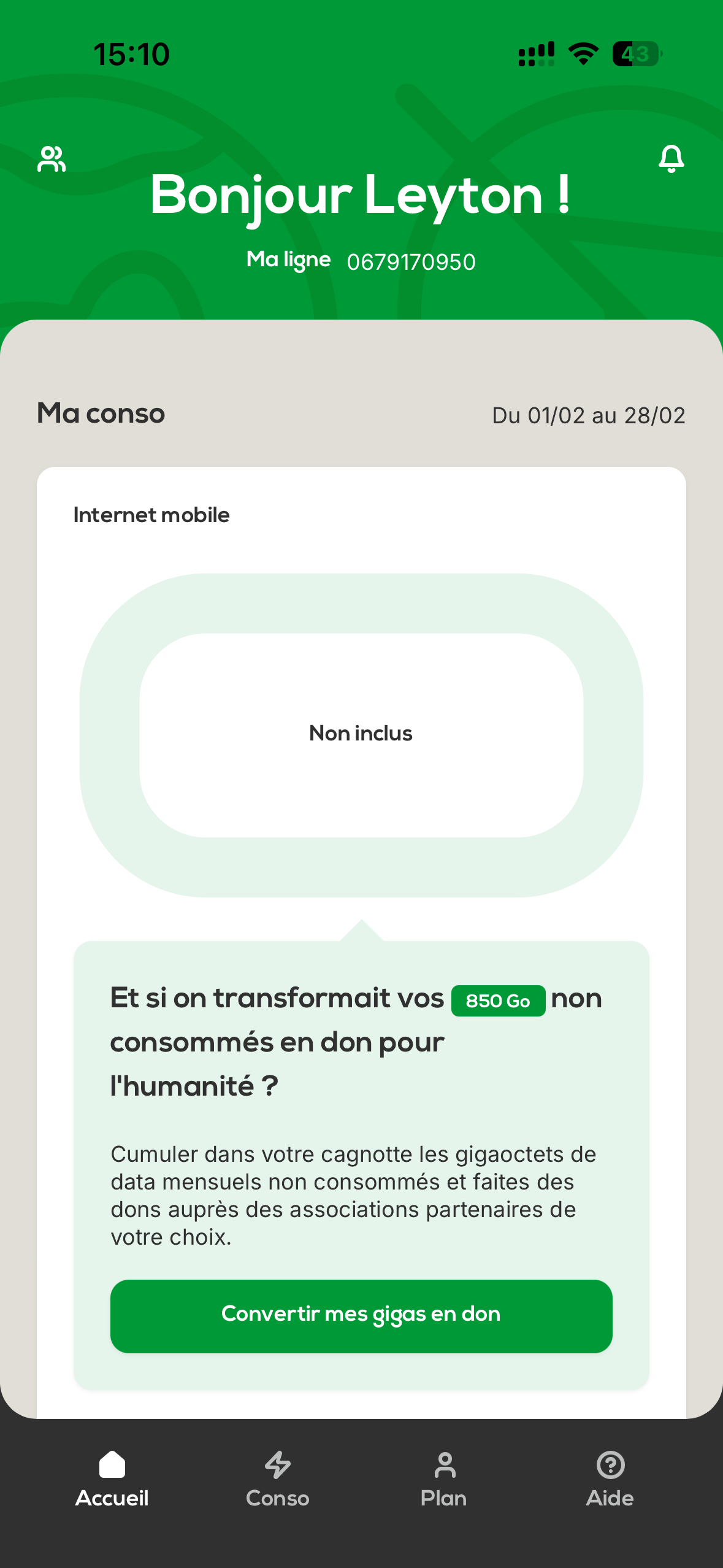
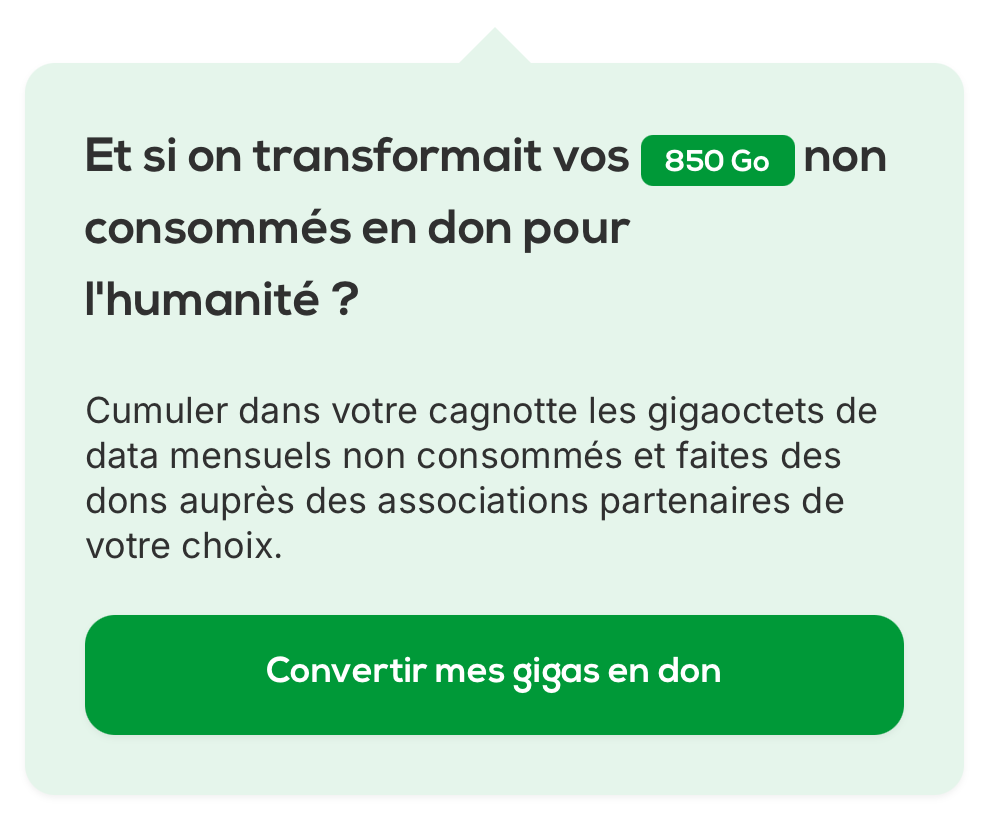
On the home page, you can see your data usage and how many gigas are available. If you have enough gigas, the « Convert my gigas into donations » button will be available.
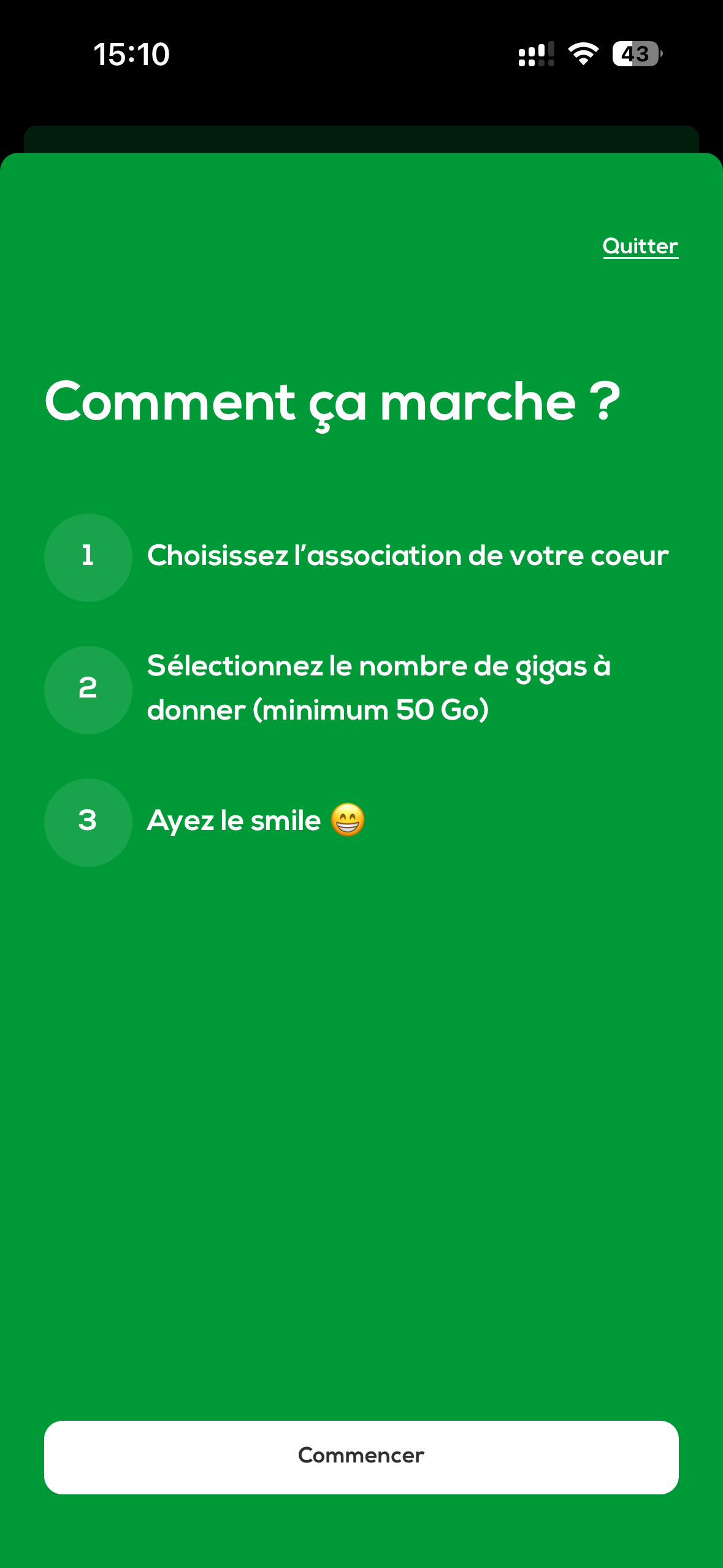
After clicking on « Convert my gigas into donations », a summary screen appears to explain how the donation works in two steps:
Select the beneficiary charity
Choose how many gigas you want to donate (minimum 50 gigas)
Click on « Start » to launch the process.
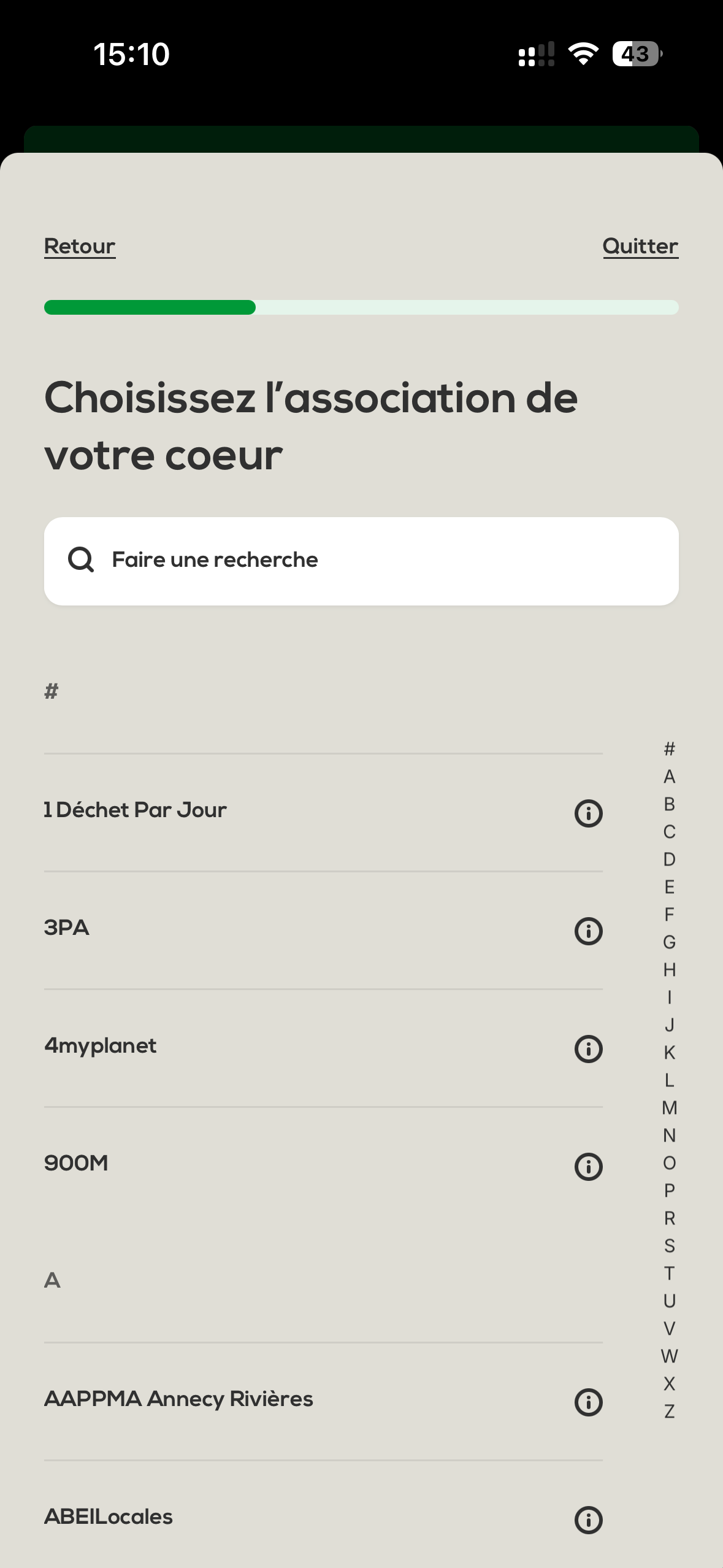
You now have access to the list of partner associations. Browse the different available associations and select the one you want to support.
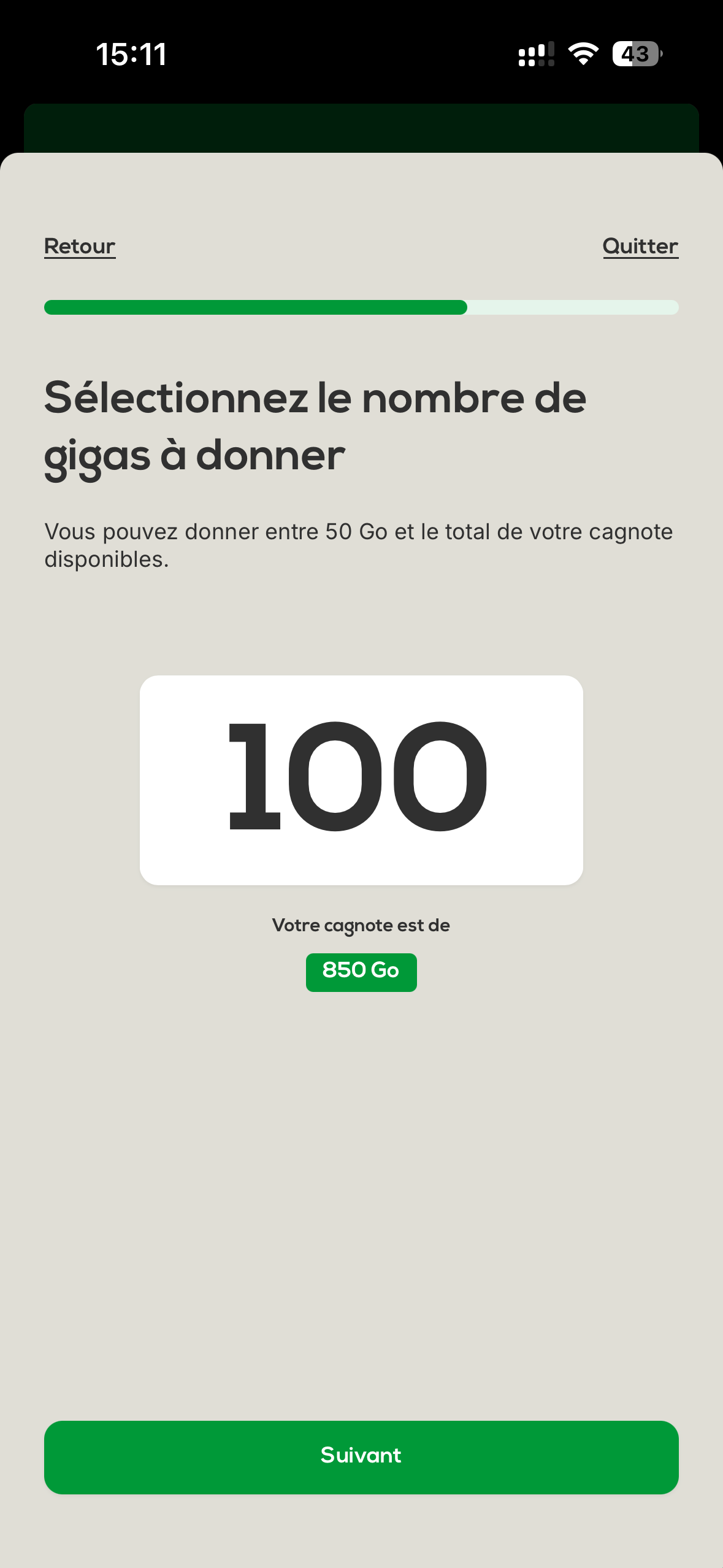
Once the association is selected, enter the number of gigas you want to donate.
Important: The minimum donation is 50 gigas.
For example, if you want to donate 100 gigas, enter this amount then click on “ Next ”.
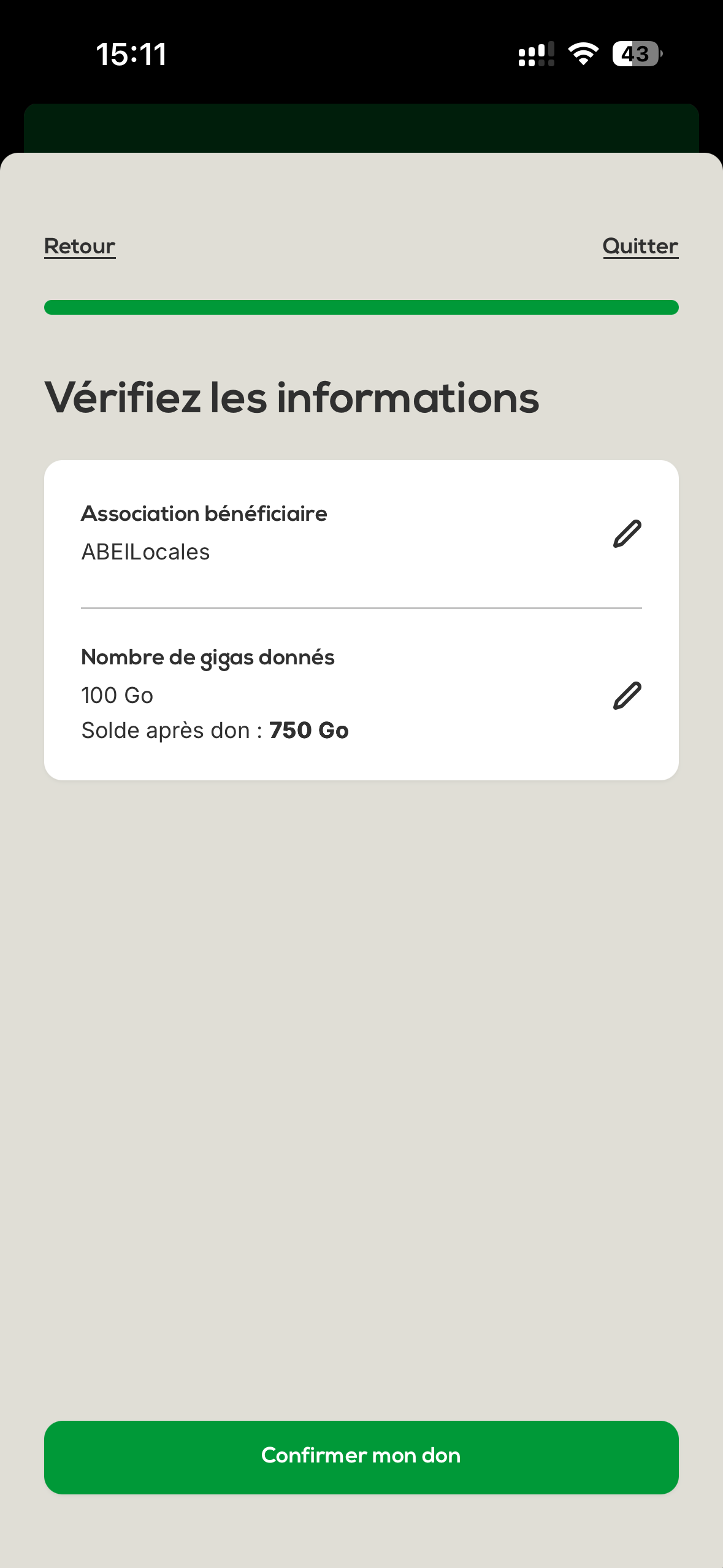
A summary screen appears. Carefully check:
The name of the beneficiary association
The selected number of gigas
If everything is correct, click on « Confirm my donation ».
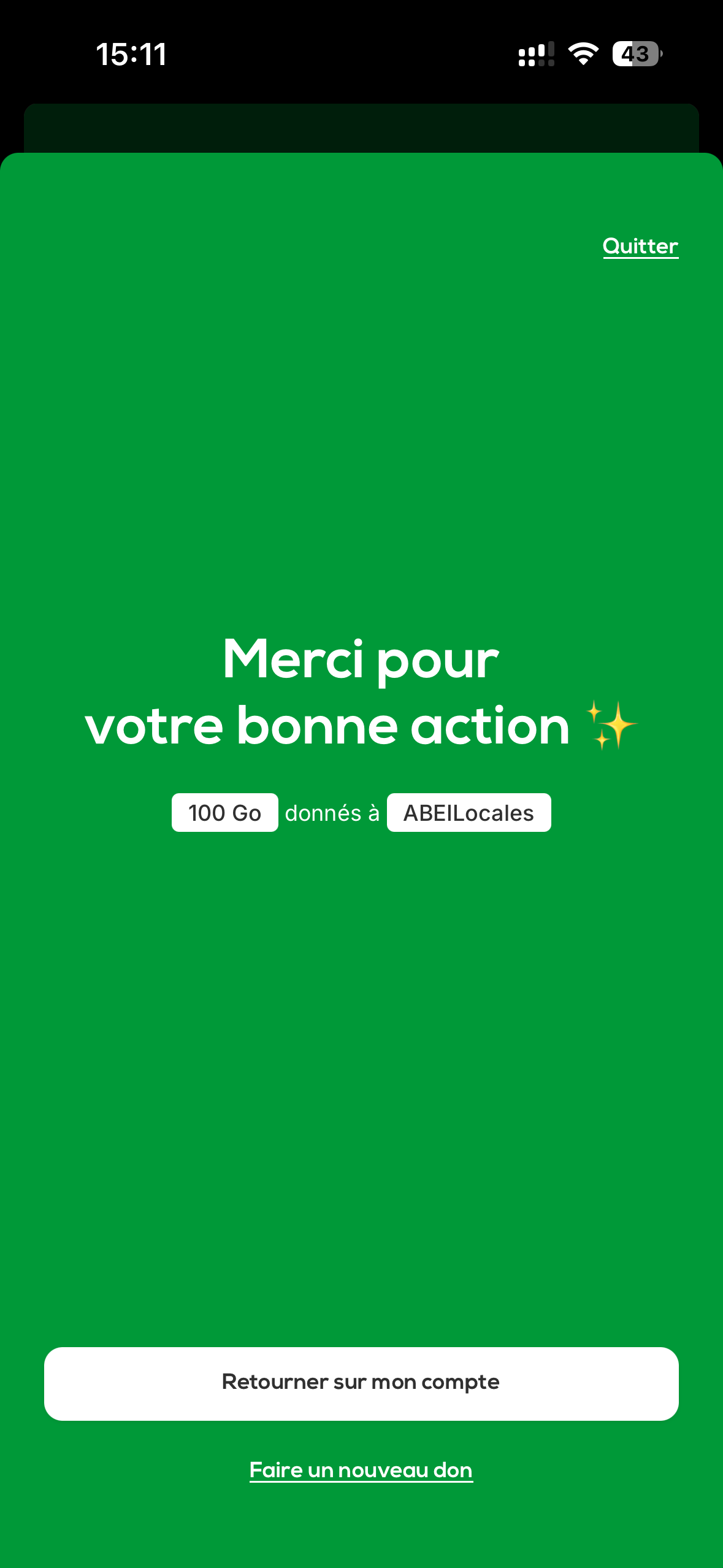
A confirmation message appears to let you know that your donation has been successfully recorded.
The person in charge of the fleet or the company’s administrative manager will receive a tax receipt at the end of the year summarizing all the donations made during the year by your employees. This document can be used for your tax returns so you can benefit from a tax deduction of up to 60% of the total annual donation.
Minimum donation threshold: 50 gigas
Simple process: Just a few clicks to complete your donation
Tax receipt: Sent to the owner of the account's fleet at the end of the year
Solidarity impact: Your unused gigas give real support to partner organizations
If you run into any issues during the donation process or if you have questions, feel free to contact our customer support.
Turn your unused data into an act of solidarity today with Un1ty!