The teams feature in Un1ty lets you organize your organization's users and manage billing flexibly. This guide explains how to create, configure, and manage your teams.
To create and manage teams, you must:
Have access to the Un1ty app
Available here: https://un1ty.app.link/
Be the organization owner (owner)
Once you're logged in to the Un1ty app:
Click on the « Plan » menu
Select the « Admin » tab
Go to the « Team » sub-tab

The Team screen shows all the teams available in your organization. You can:
Click an existing team to edit it
Create a new team by clicking the « + » button at the bottom right
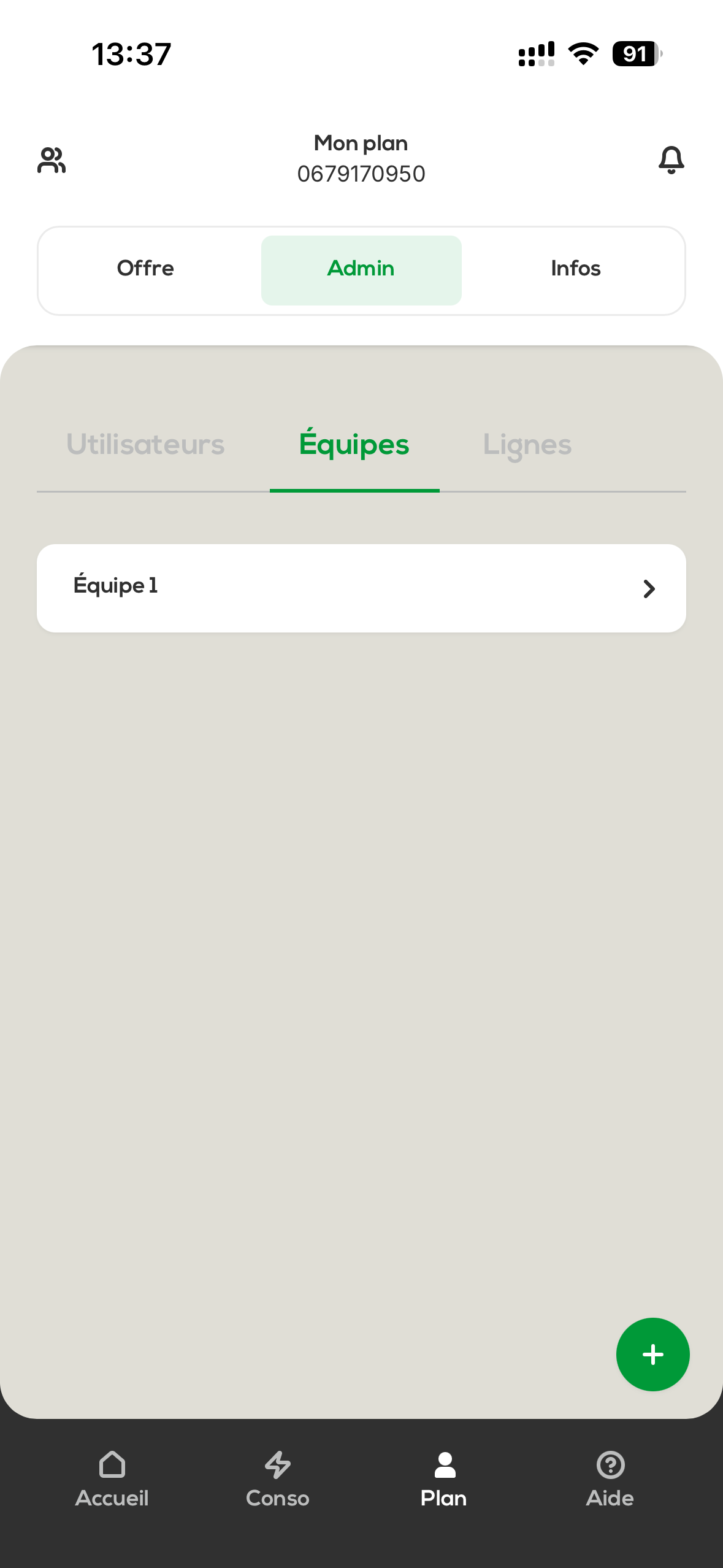
Click on the « + » button and enter your team name (for example: "Team 2").
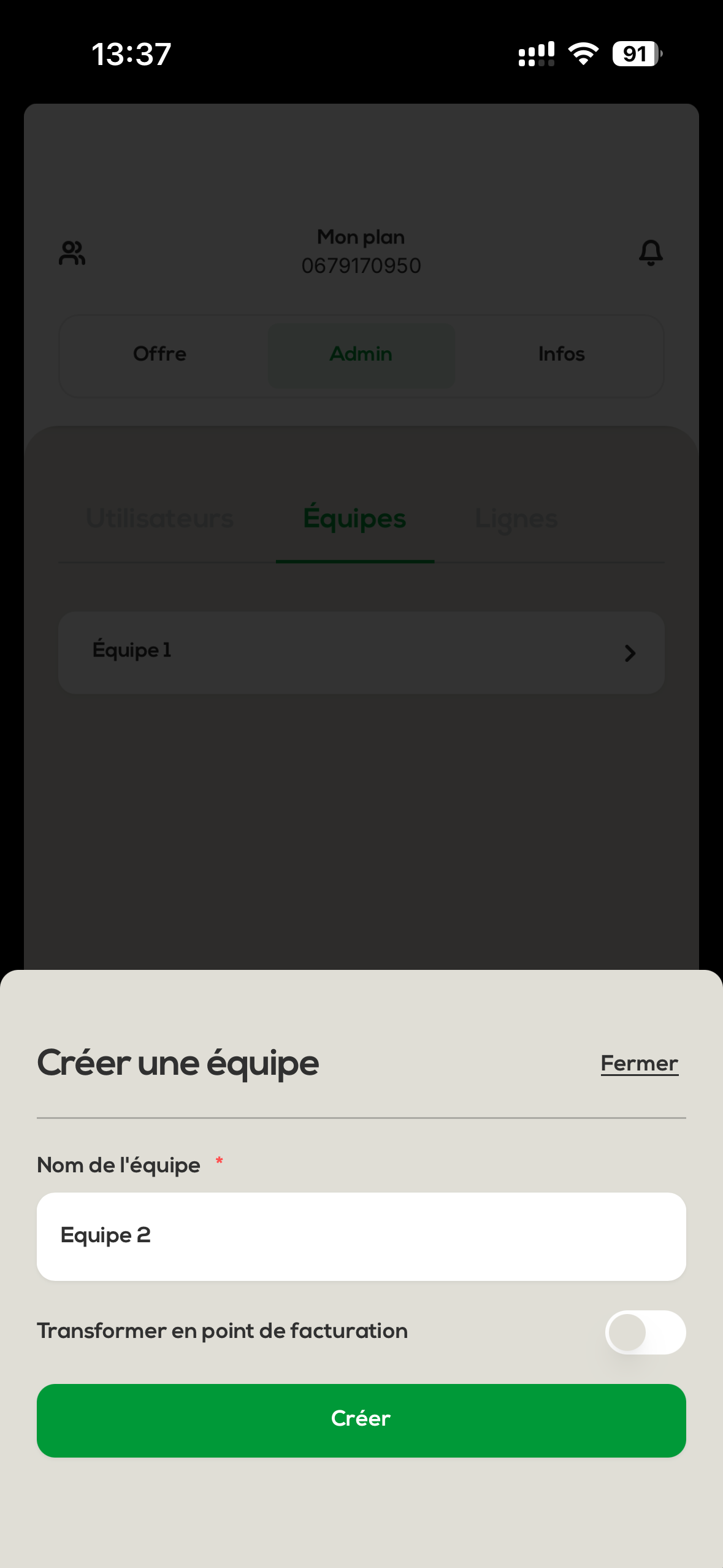
You can turn this team into a billing point. This option is especially useful if:
Your organization includes several companies
Each company needs to receive its own invoice
Example use case: If Team 2 represents a subsidiary of your main organization that needs to receive a dedicated invoice, select the « Turn into billing point » option.
If you enabled the "billing point" option, you’ll need to fill in:
SIRET number : The company’s identification number
Billing address : The full address for billing
Corporate name : The company’s legal name
Billing email : The email address that will receive the monthly invoices (sent at the end of each month)
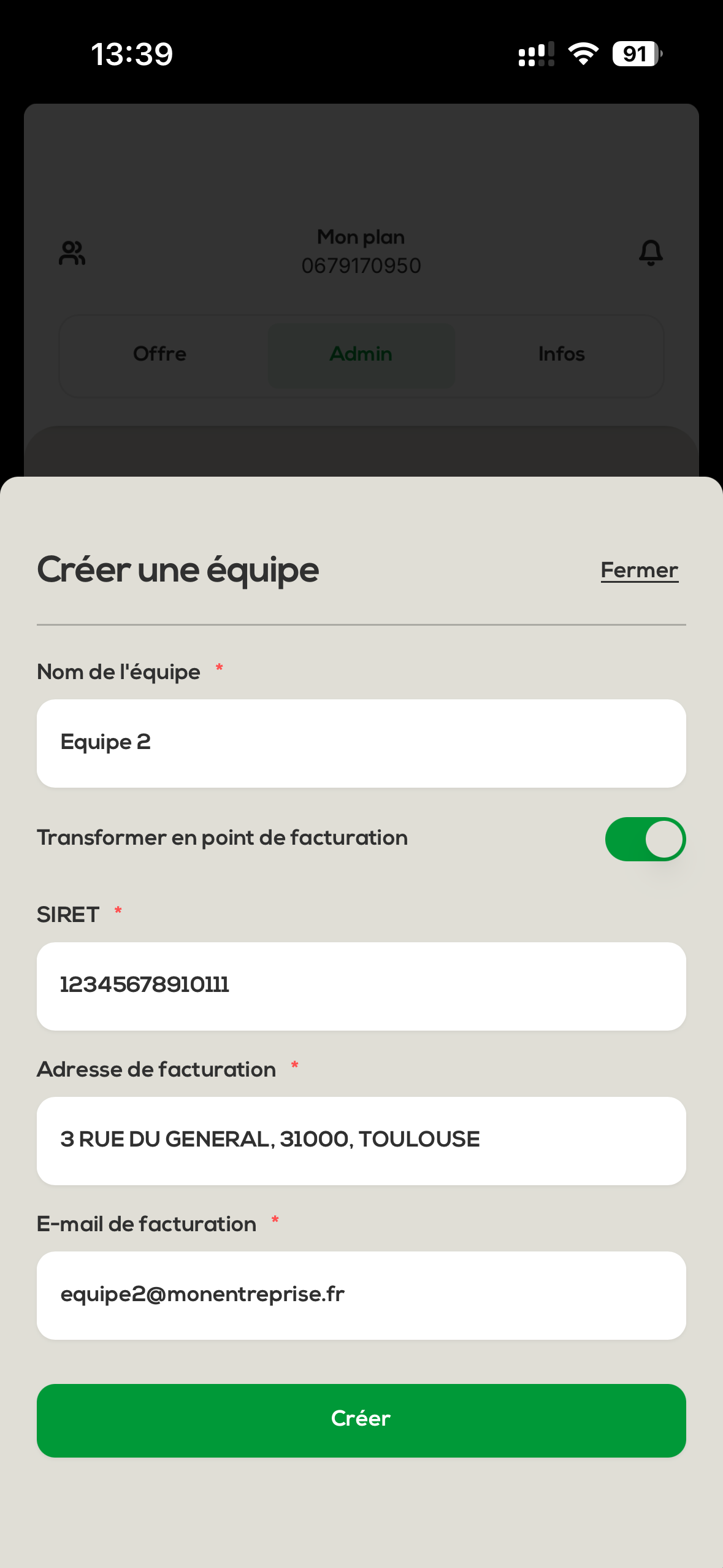
Once all the information is filled in and confirmed, click on « Create ». Your team is now created and available in your organization.
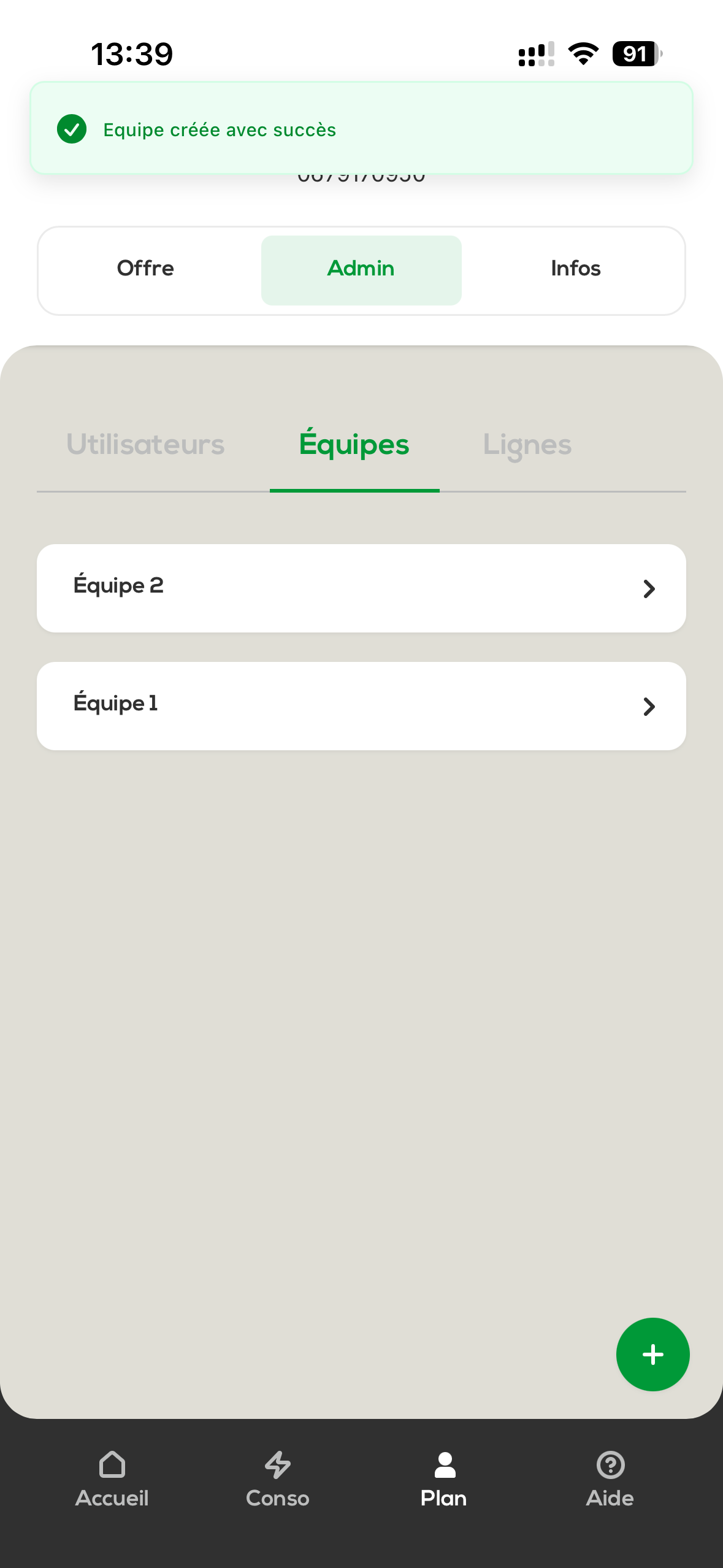
Click on the team you want to manage to open the edit screen.
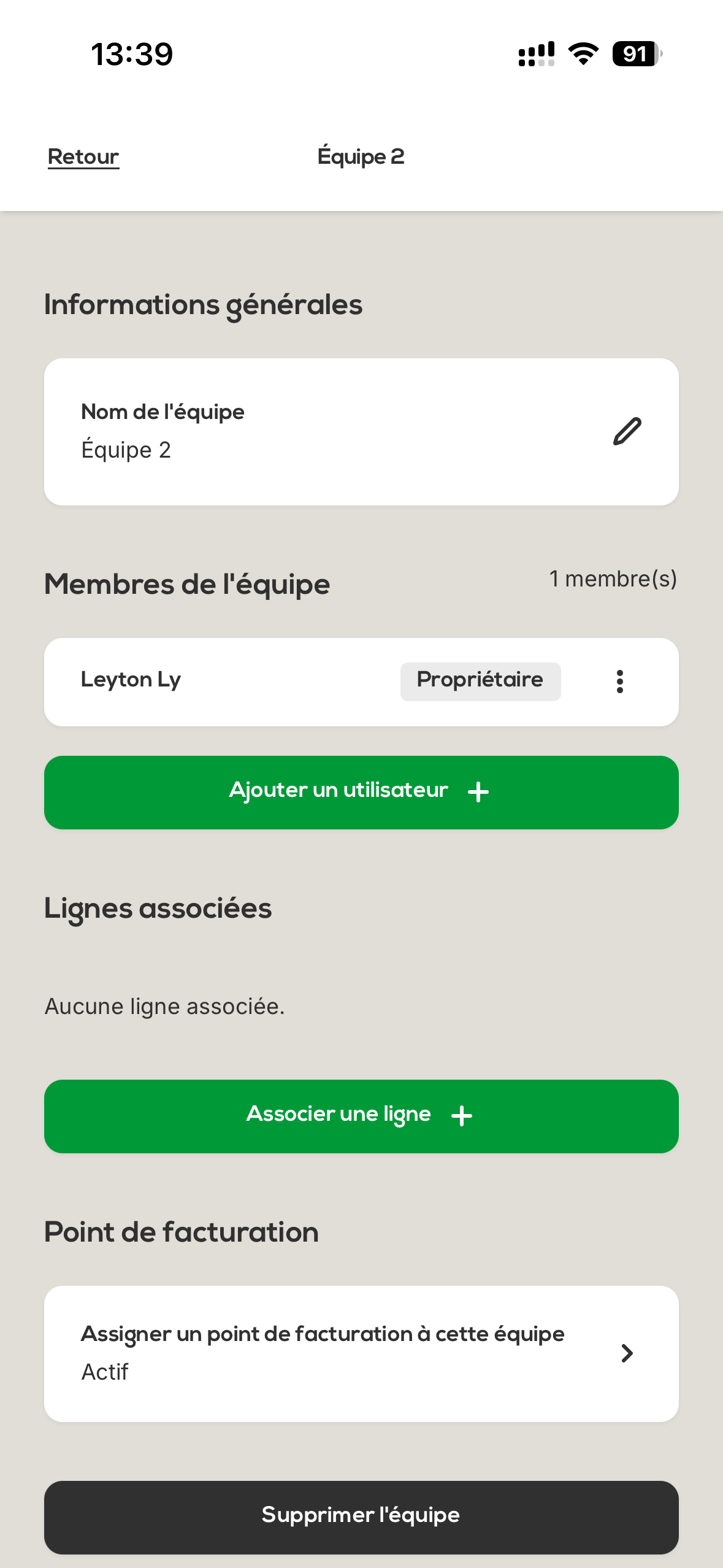
You can change the team name at any time if you need to fix something.
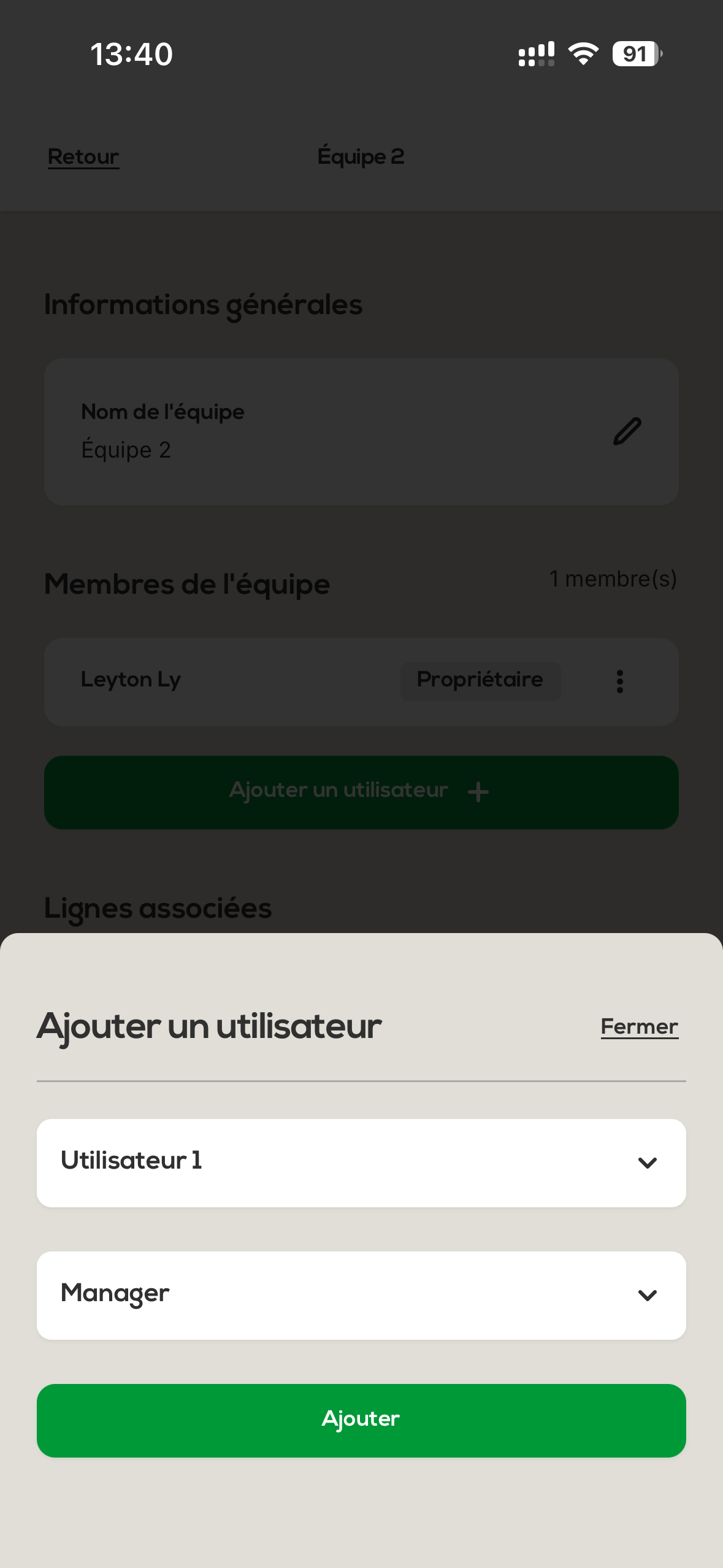
You can:
Add users to the team
Remove users from the team
Assign a role to each member:
Manager : Extended management rights on the team
User : Standard user
Once the changes have been made, click on « Confirm » to save the changes.
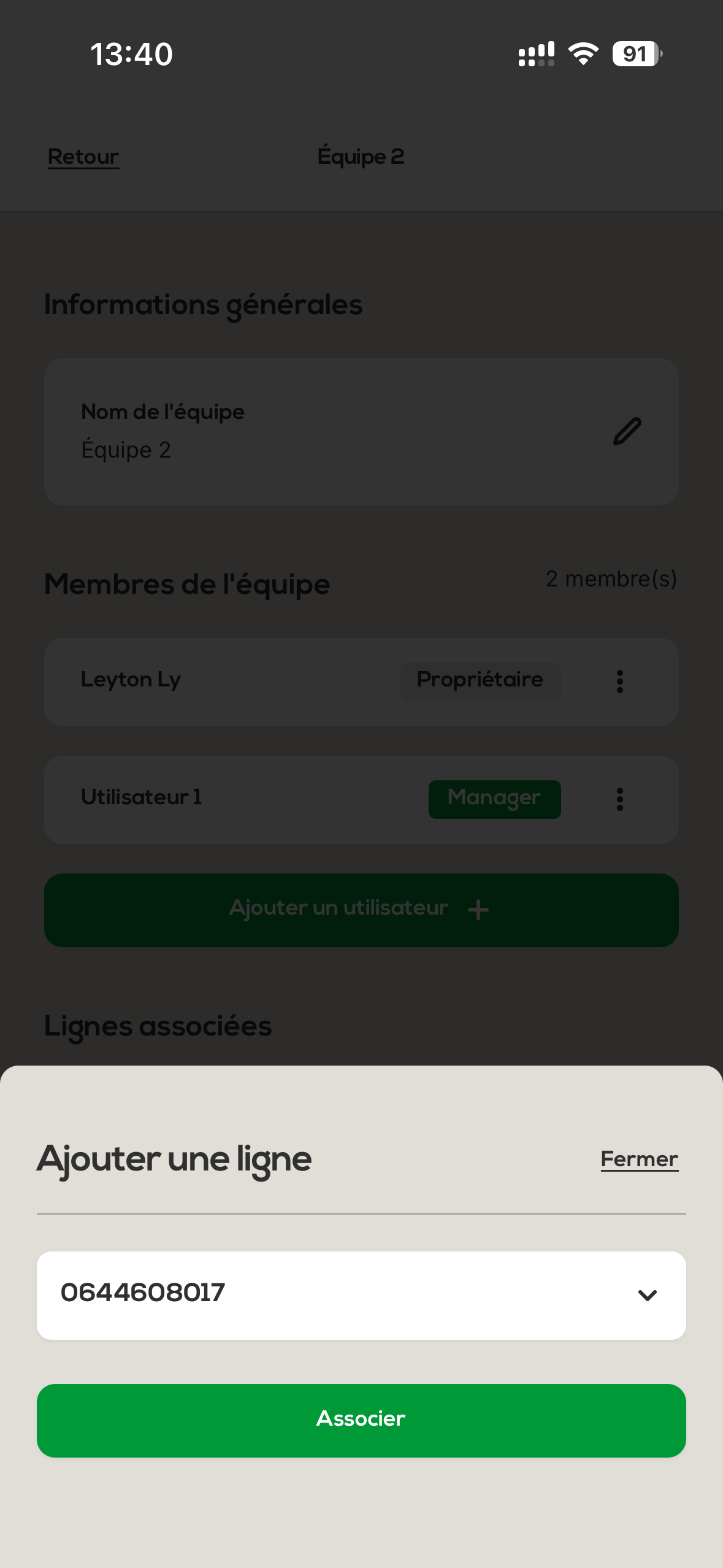
The mobile lines of your organization can be linked to the different teams you’ve created.
To link a line:
Click on « Link our lines »
Select the relevant line
Confirm the linking
If needed, you can delete a team by clicking the « Delete » button.
Warning : Make sure this action is really what you want, because it can impact how your users and your billing are organized.
Restricted access : Only the organization owner can create and manage teams
Billing points : Useful for managing multiple entities with separate billing
User roles : Two levels available (Manager and User)
Associated lines : Option to assign specific lines to each team
Monthly invoices : Invoices are automatically available at the beginning of the month in your Un1ty app.
If you run into any issues while creating or managing your teams, feel free to contact our customer support.
Organize your organization efficiently with Un1ty team management!