User management in Un1ty lets you add new members to your organization, edit their information, and assign them lines and teams. Here’s how to do it.
To create and manage users, you need to:
Have access to the Un1ty app
Be fleet owner (owner)
Open the Un1ty app
Click on the “ Plan ” menu
Select the “ Admin ” tab
By default, you land in the “ Users ” tab
This screen lets you:
View all existing users in your organization
Create new users
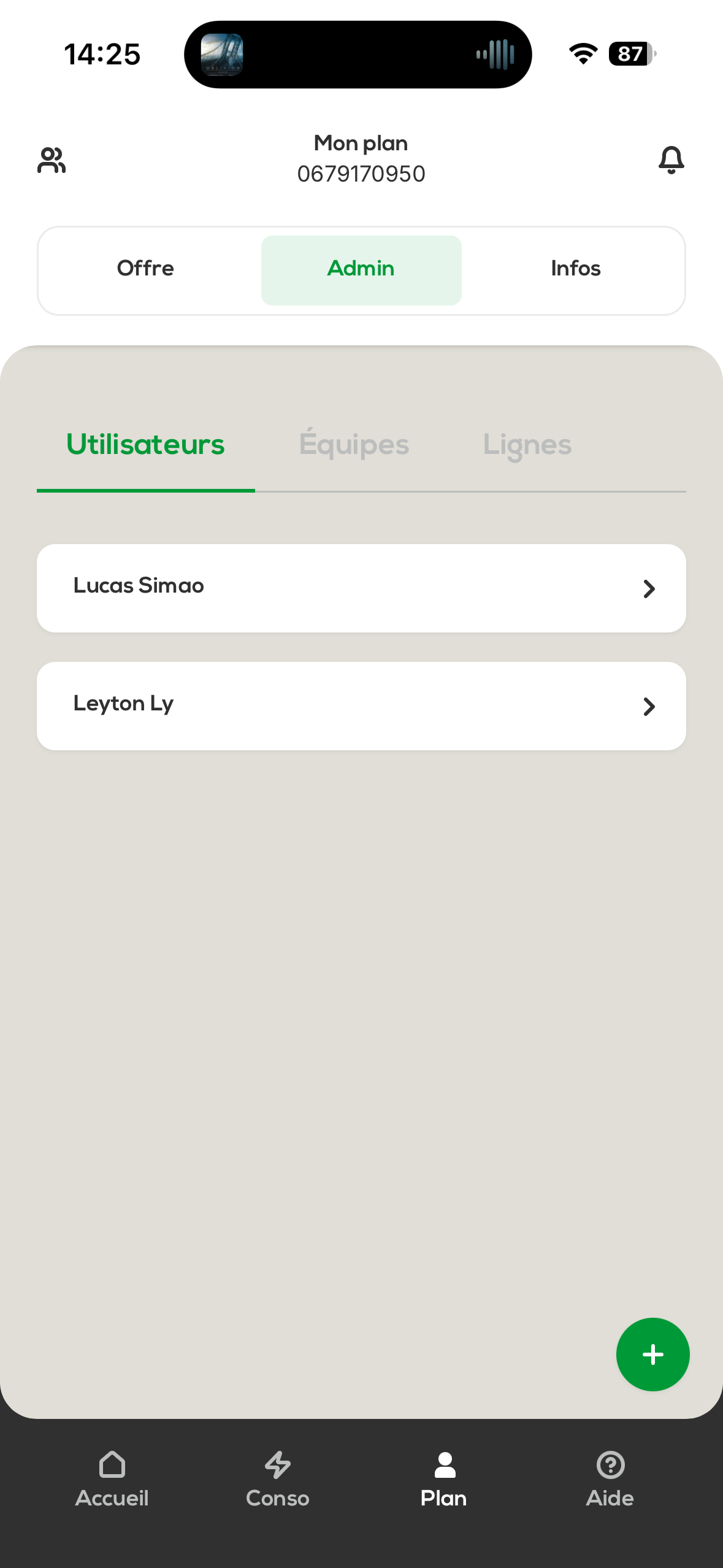
Click the “ + ” button at the bottom right of the screen.
You’ll be asked to enter:
First name of the user
Last name of the user
Email address of the user (login email)
Once all the information has been entered, click on “ Create ”. The new user is now added to your organization.
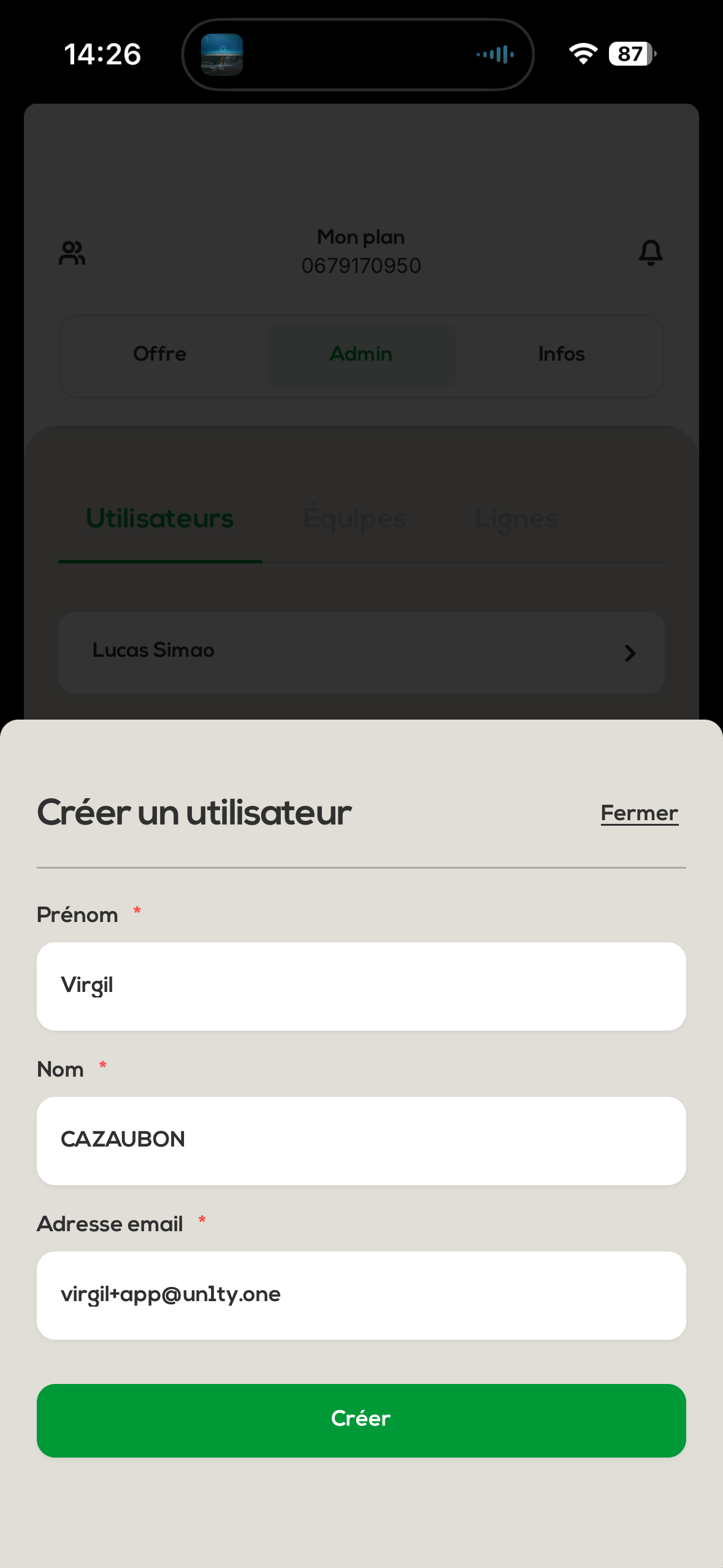
In the Admin > Users, click on the user you want to edit.
You can edit:
The first name
The last name
The login email
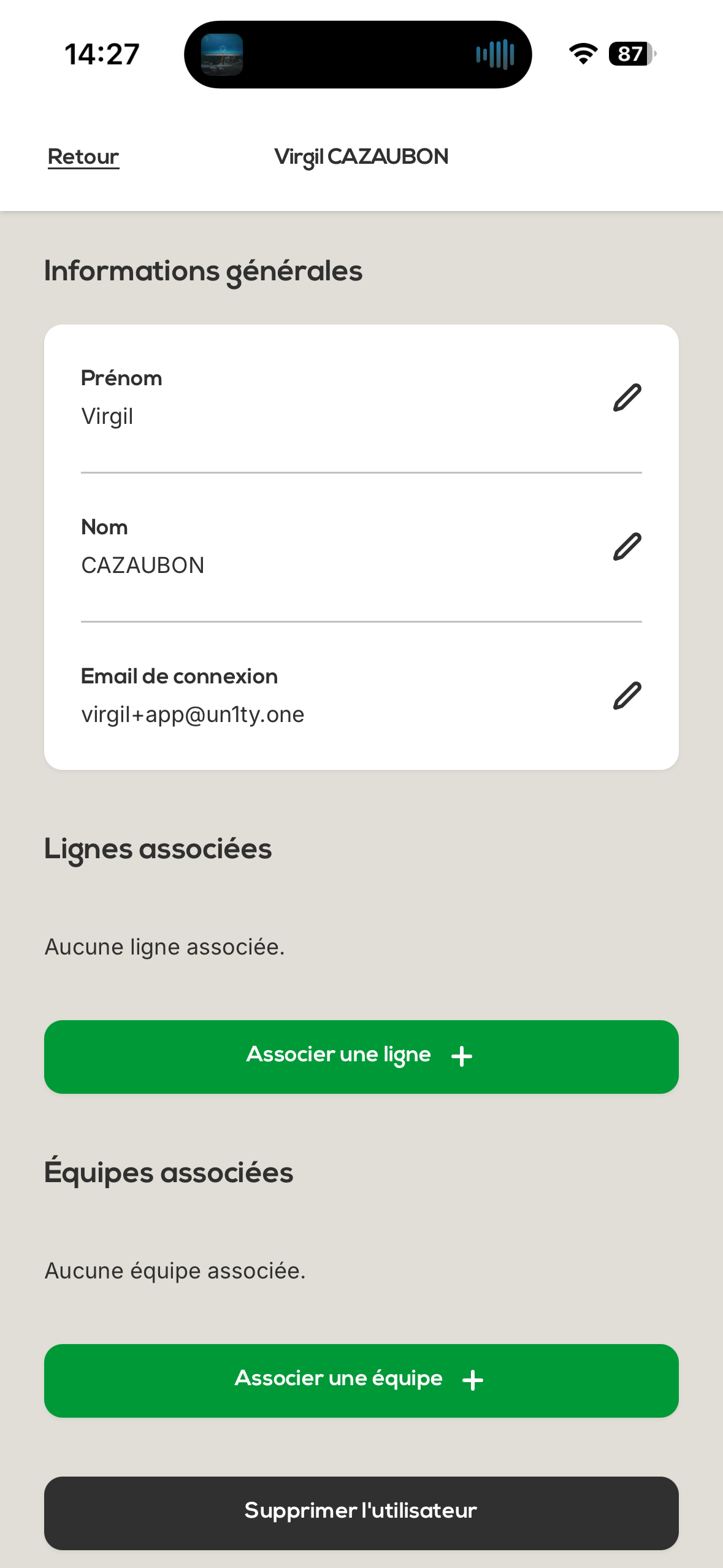
To assign a mobile line to this user:
Click on “ Link a line ”
Select the line in question from the list
Click on “ Link ”
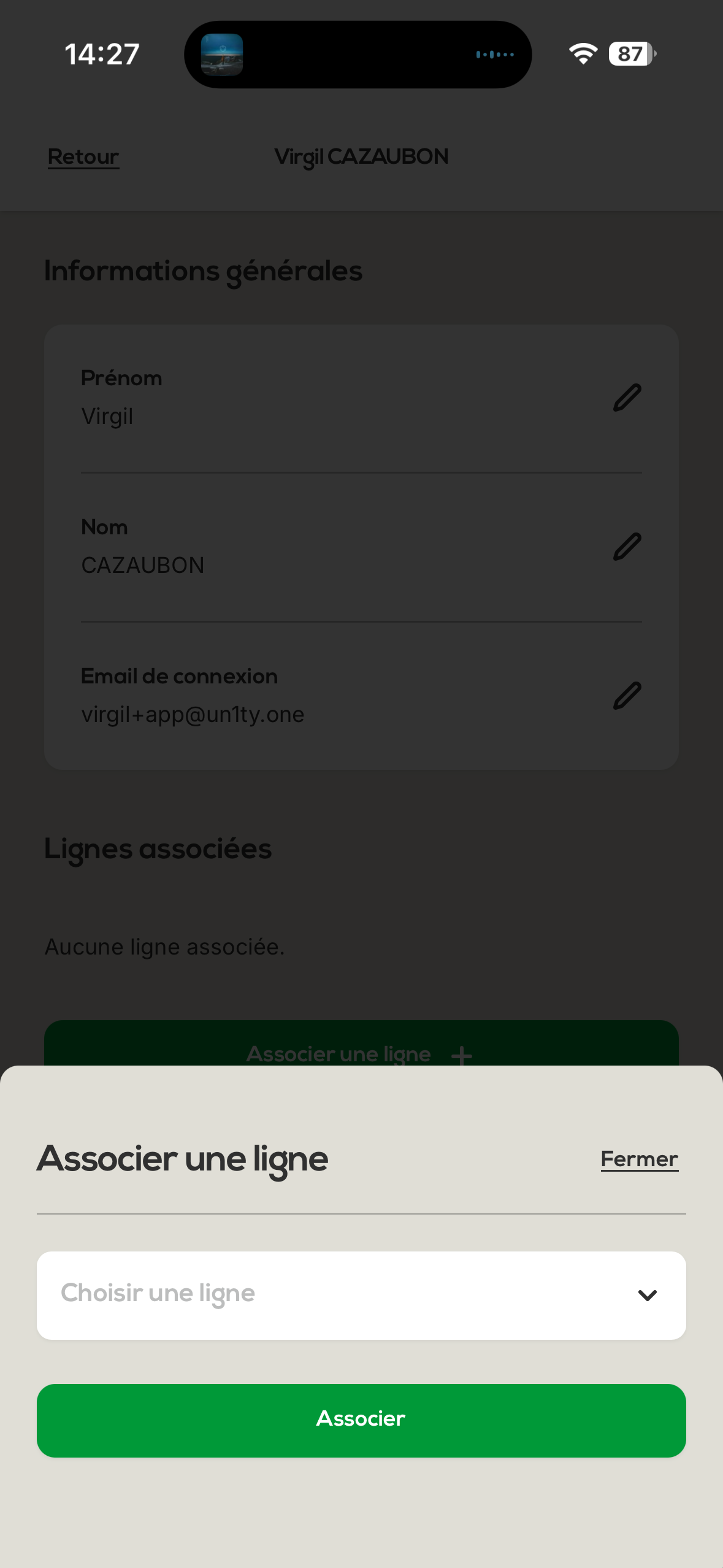
To add the user to a team:
Click on “ Link a team ”
Choose the relevant team
Select the user's role in this team:
Manager: Management rights on the team
User: Standard user
Click on “ Link ”
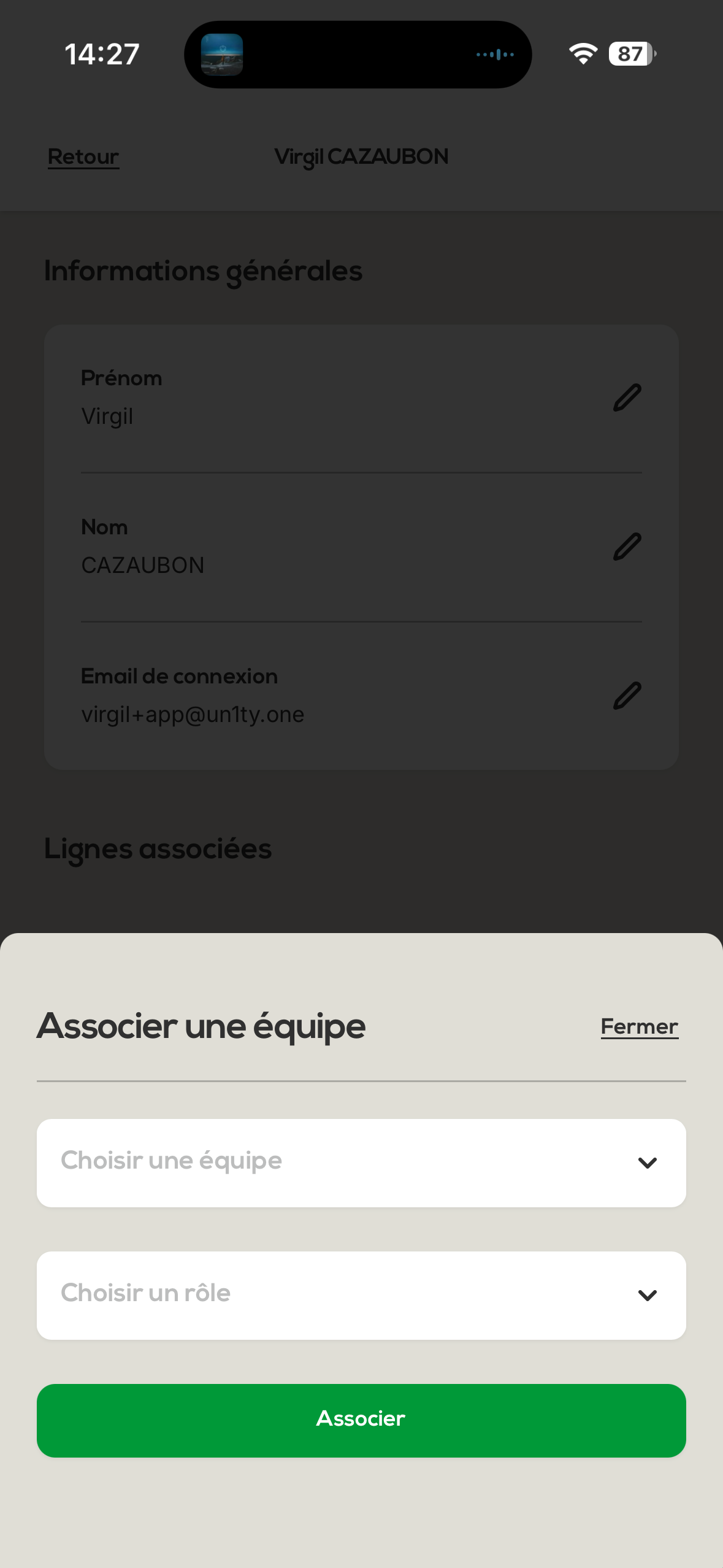
Once all the changes have been made, don't forget to confirm your updates.
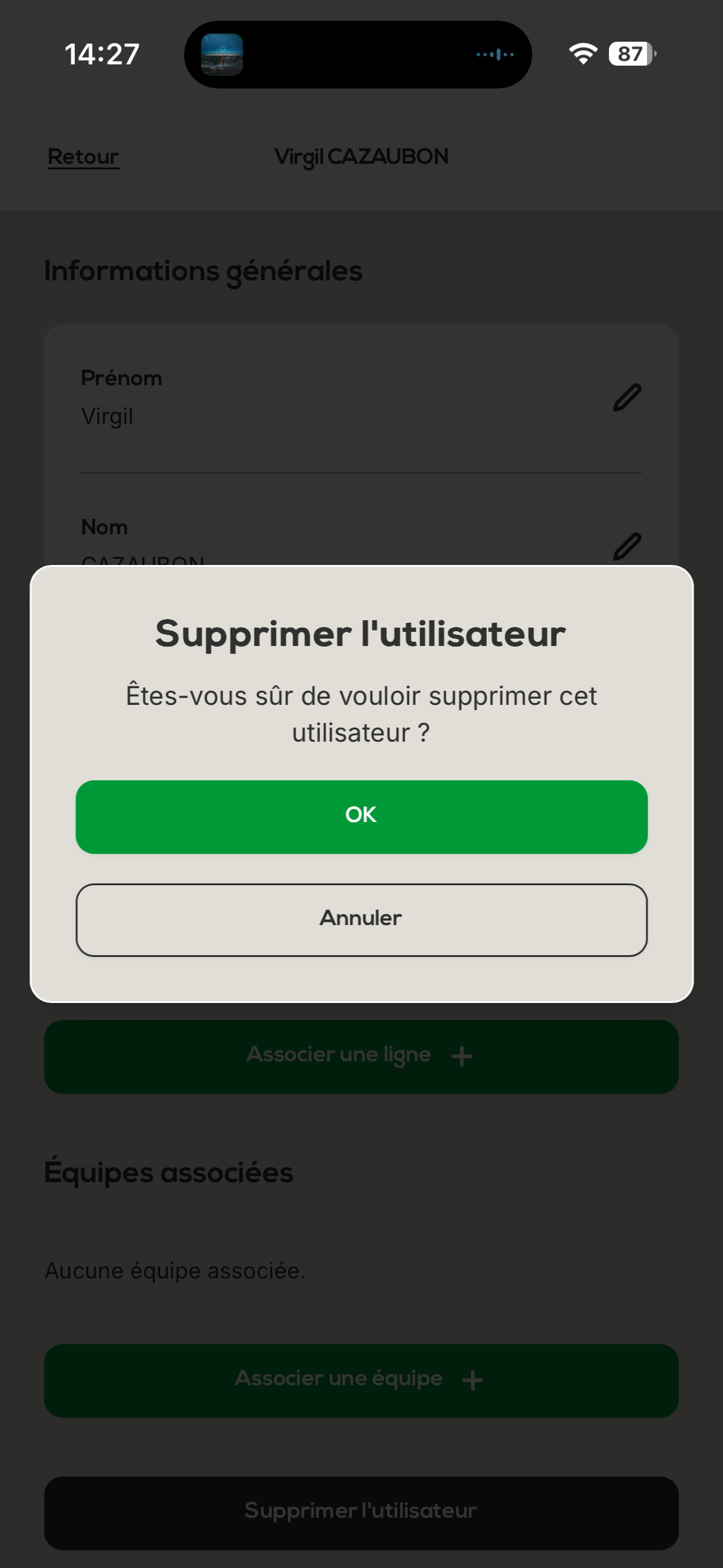
If needed, you can delete a user by clicking the “ Delete user ” button from the user edit screen.
Warning: This action is irreversible. Make sure you really want to delete the user.
Restricted access : Only the fleet owner can create and manage users
Minimal information : First name, last name and email are enough to create a user
Flexible assignment : You can link lines and teams after creation
Customizable roles : Manager or User depending on your needs
Full management : You can edit and delete at any time
If you run into any issues while creating or managing your users, feel free to contact our customer support.
Efficiently manage the members of your Un1ty organization!