An active Un1ty account with Owner rights.
A HubSpot account (admin access preferred).
Your login details for both platforms.
To get started, go to your management interface to activate your new sync superpowers.
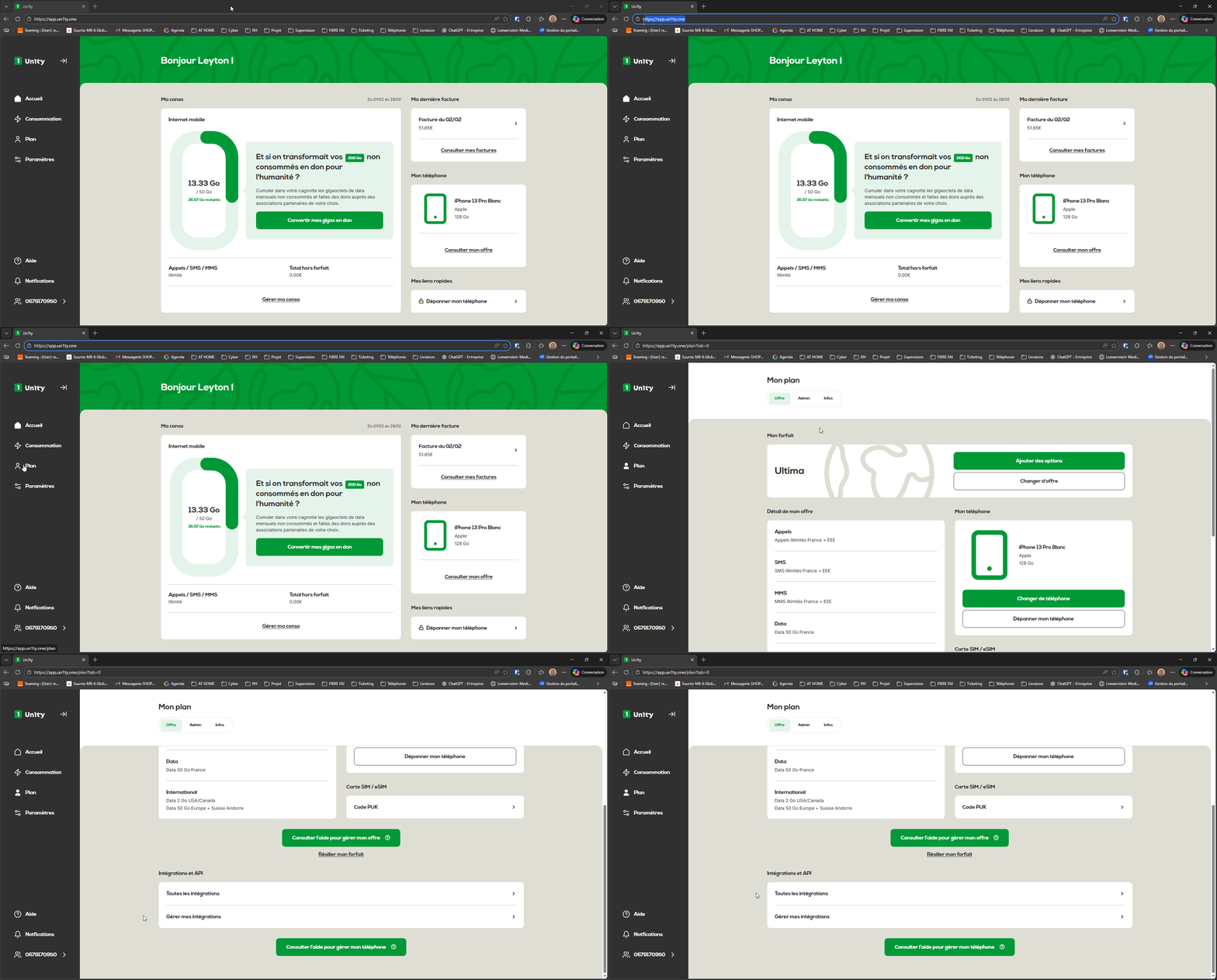
Log in to your app.un1ty.one portal.
In the left sidebar menu, click on the Plan tab.
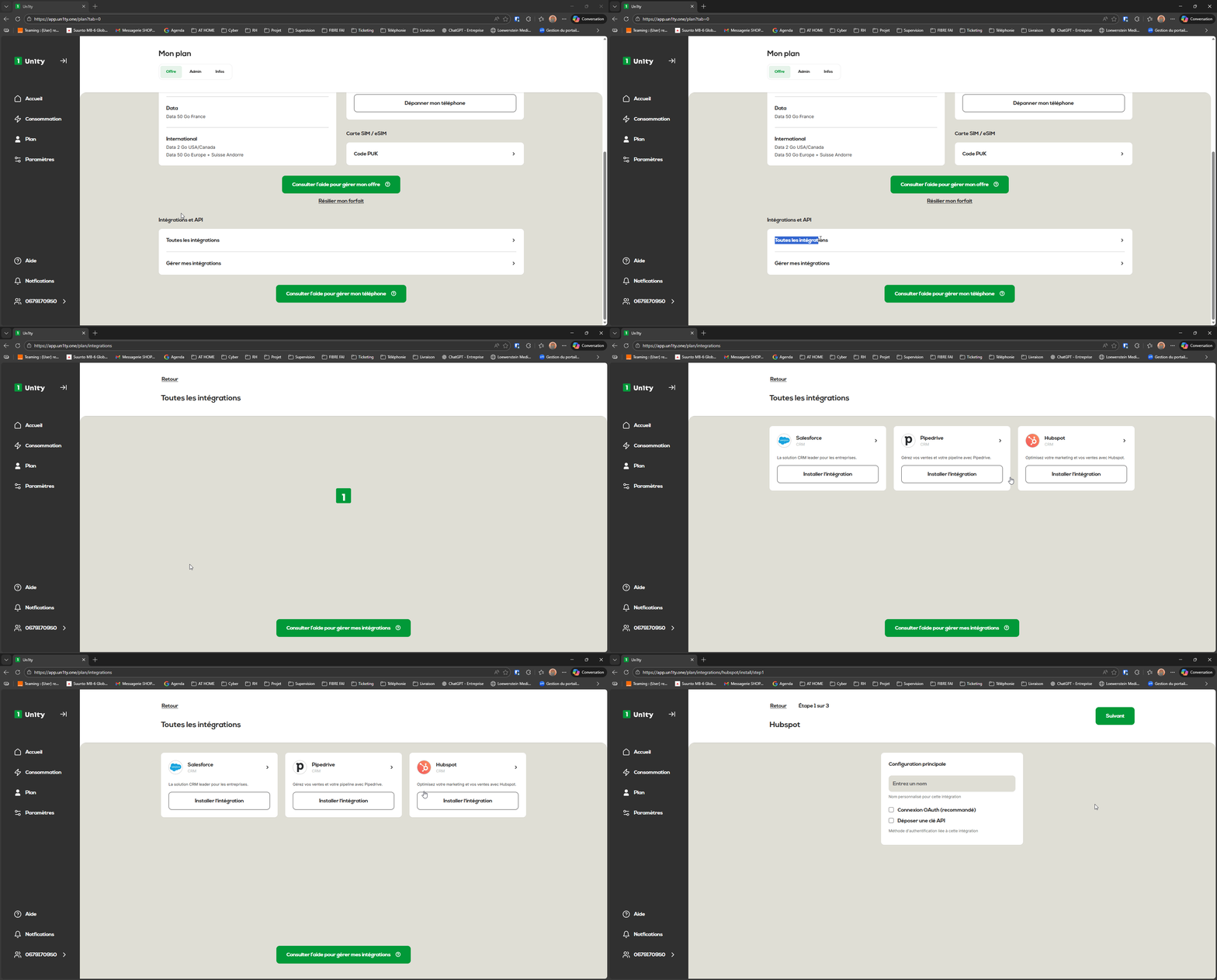
Scroll down the page to the Integrations and API section at the bottom of the page.
Click the All integrations button to explore the available connectors.
From the list of tools, find the card dedicated to HubSpot.
Click the Install integration button.
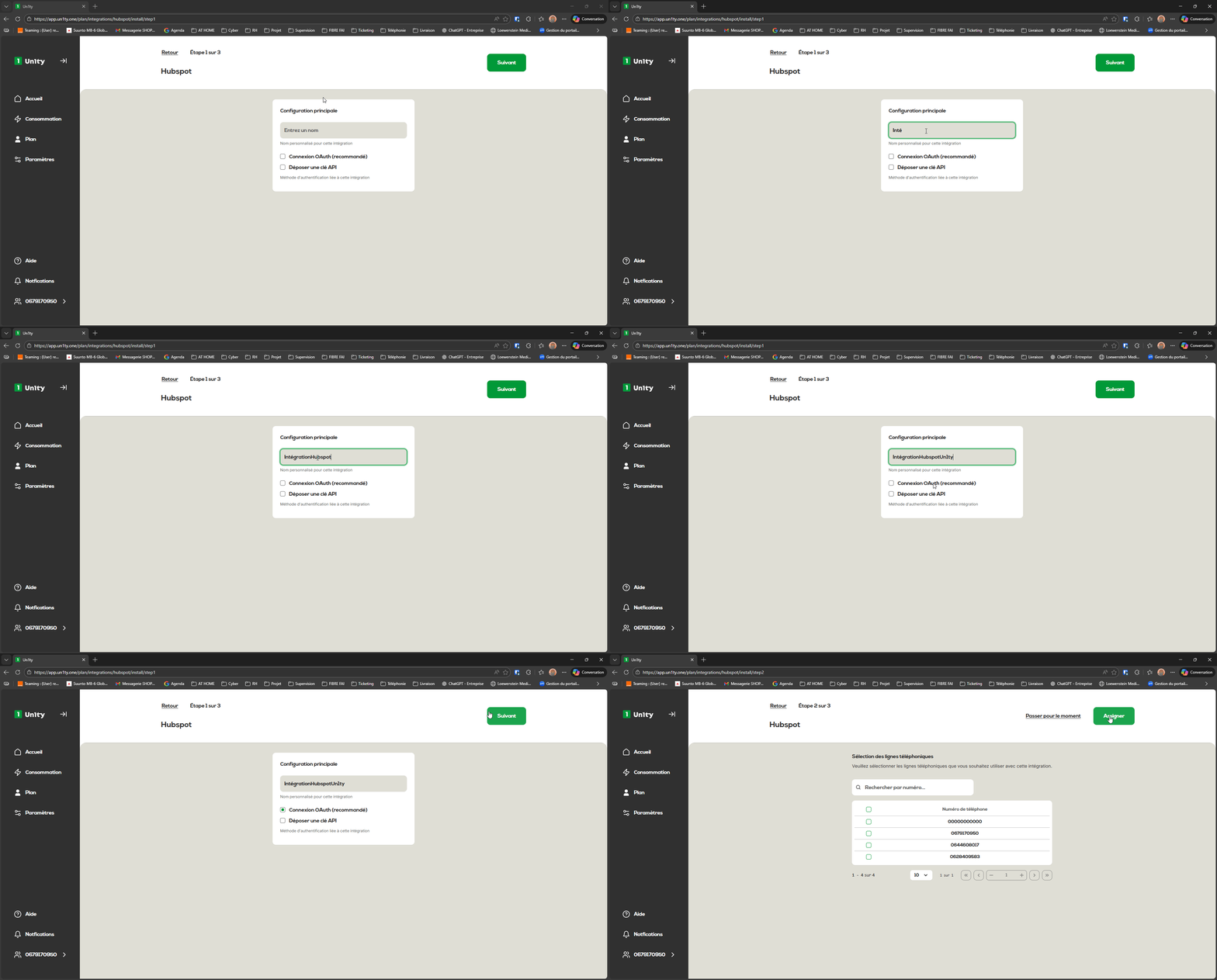
Now it’s time to customize your data flow so it’s easy to spot in your interface.
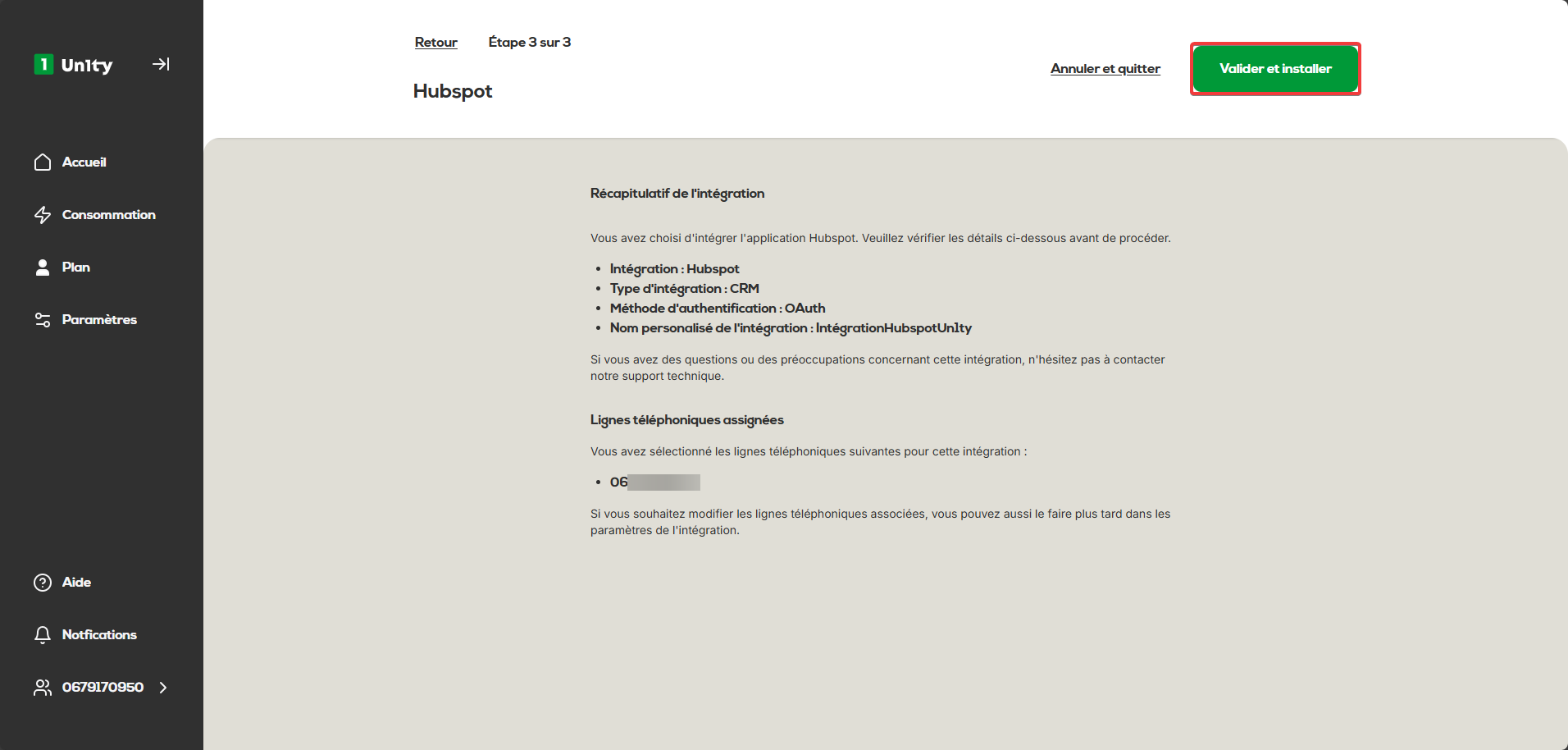
Custom name: Enter a clear name (e.g. IntégrationHubspotUn1ty).
Authentication method: Select OAuth connection (recommended method for maximum security).
Click on Next.
Notes : Using a clear custom name is ideal if you plan to connect several HubSpot portals to different entities in your Un1ty account.
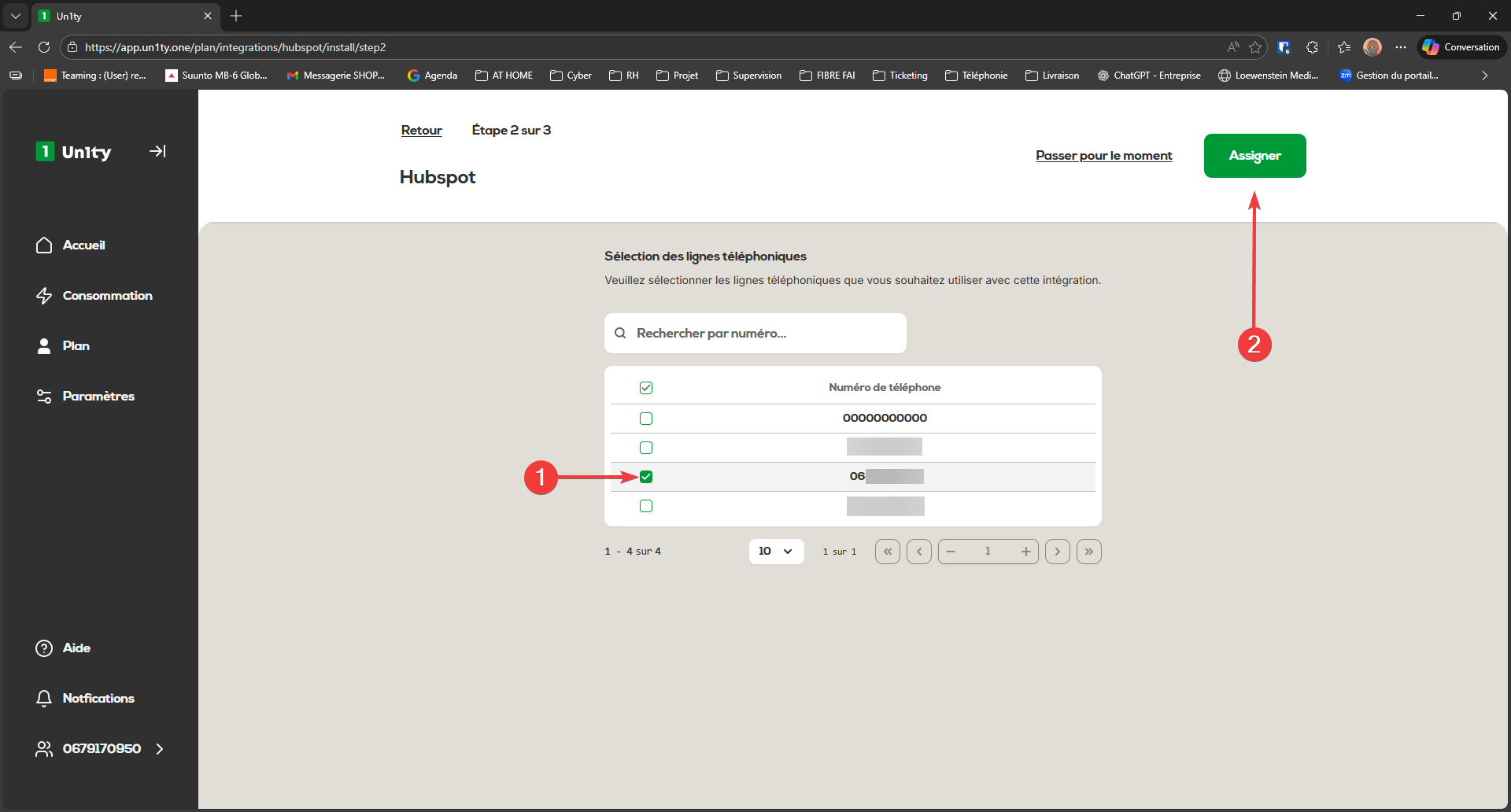
Choose which teammates or departments will benefit from automatic information logging in the CRM.
Check the Un1ty line(s) you want to link to HubSpot.
Click the Assign button.
Before finalizing the technical link, make sure the configuration matches your needs.
Check the summary of the information you entered.
If everything looks good, click Validate and Install.
The system now redirects you to HubSpot's secure environment to confirm data sharing.
If you're not logged in yet, choose Sign in to your HubSpot account.
Enter your usual HubSpot credentials.
Account selection: Choose the specific HubSpot portal to connect (e.g. "CRM Global"), then click on Select an account.
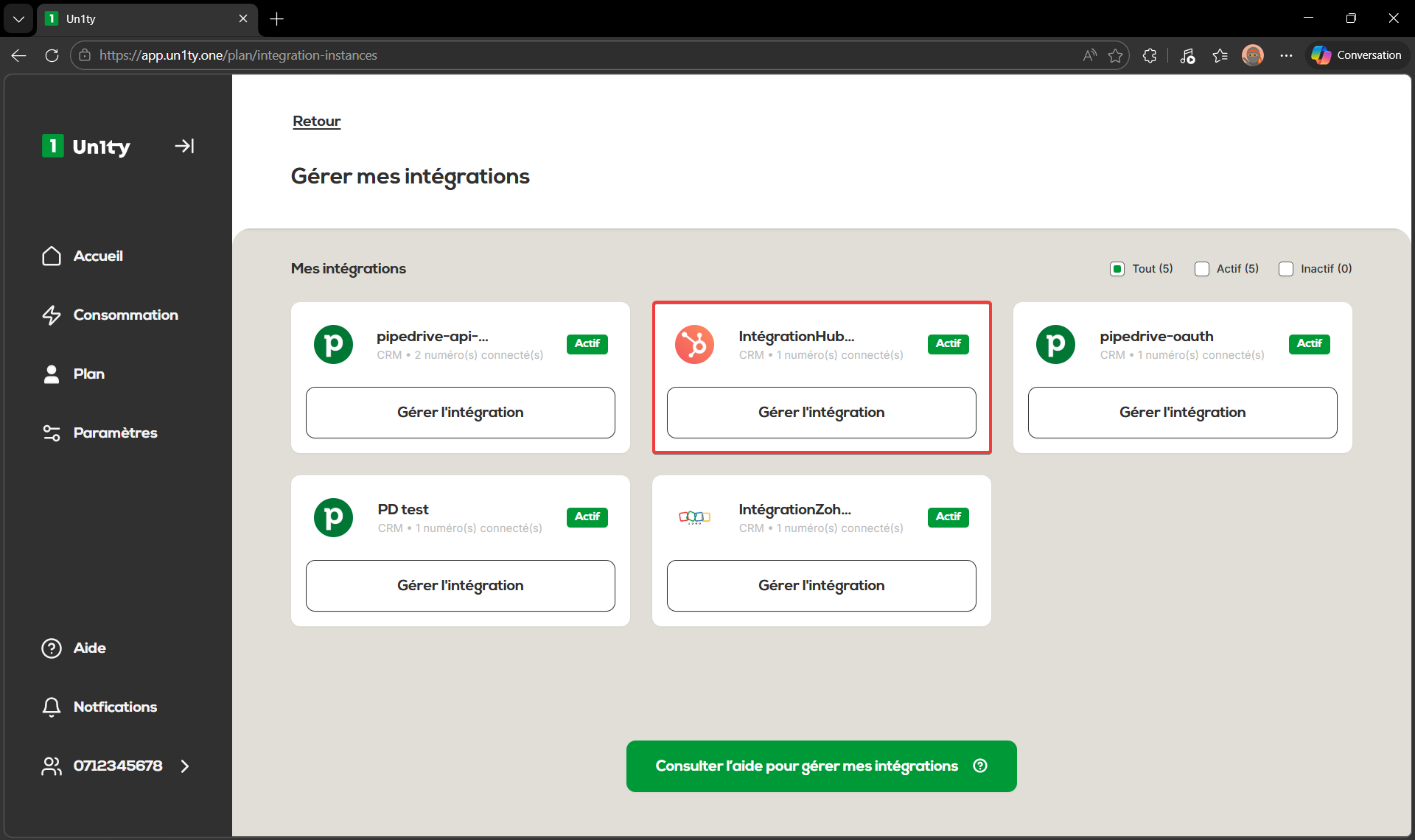
As soon as the status shows "Active" in green, Un1ty takes over your admin tasks:
With every call or SMS, the integration automatically looks up your contact using their phone number:
Contact priority: Un1ty first looks among your Contacts in HubSpot.
Company fallback: If no contact is found, the system looks among your Companies.
Link intelligence: The call or SMS is linked to the entity found. If your contact is linked to a company, Un1ty smartly associates the activity with both entities.
The data is stored precisely in your HubSpot timeline:
Calls: Creation of a "Call"-type engagement including the duration, direction, and disposition of the call.
SMS: Creation of a "Communication" object of type SMS for a clear view of your text exchanges.
Notes: The activity (Call or SMS) is automatically assigned to the corresponding HubSpot Owner if the user's email address is the same in Un1ty and HubSpot.
Productivity: Your exchanges are logged automatically without any manual action.
Double visibility: Calls are synchronized with contacts AND the associated companies.
Automatic assignment: Follow-up is assigned to the right team member for better collaboration.
Security: OAuth authentication ensures a continuous data flow that is encrypted and automatically refreshed.