An active Un1ty account with Owner rights.
A Zoho CRM account (Standard Edition or higher, admin access).
Critical check: Make sure the "Calls" module is enabled in your Zoho instance, as well as at least one of the following modules: Contacts, Leads or Accounts.
To get started, go to your management interface to unlock your new sync superpowers.
Log in to your portal app.un1ty.one.
In the left sidebar menu, click on the Plan tab.
Scroll down to the Integrations and API section at the bottom of the page.
Click the All integrations button.
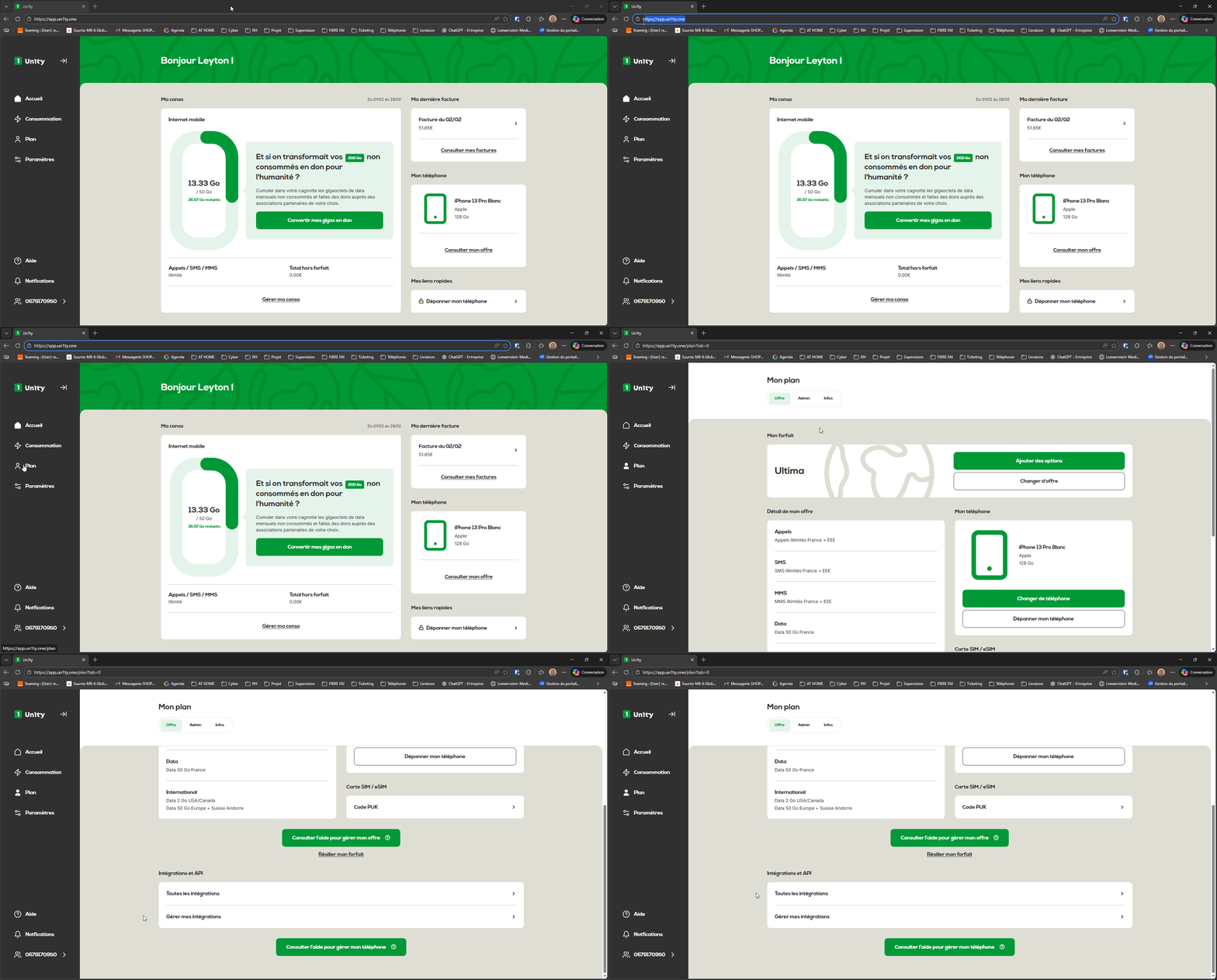
From the list of available tools:
Find the Zoho CRM card.
Click the Install integration button.
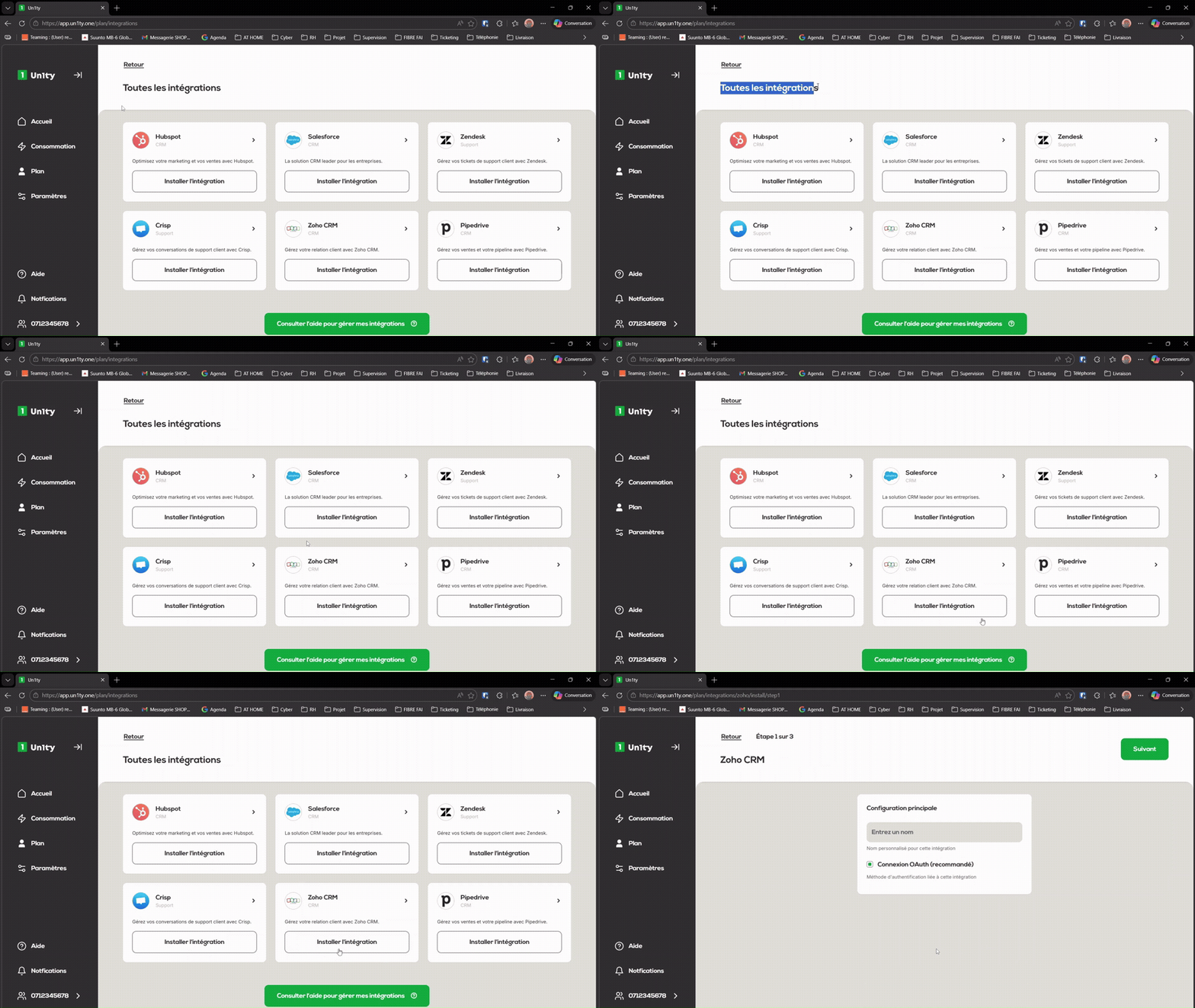
Customize your flow for simplified management of your different instances.
Custom name: Enter a clear name (e.g. IntégrationZohoUn1ty).
Authentication method: Select OAuth connection (recommended method). Un1ty automatically handles multi-region servers (EU, US, AU...).
Click on Next.
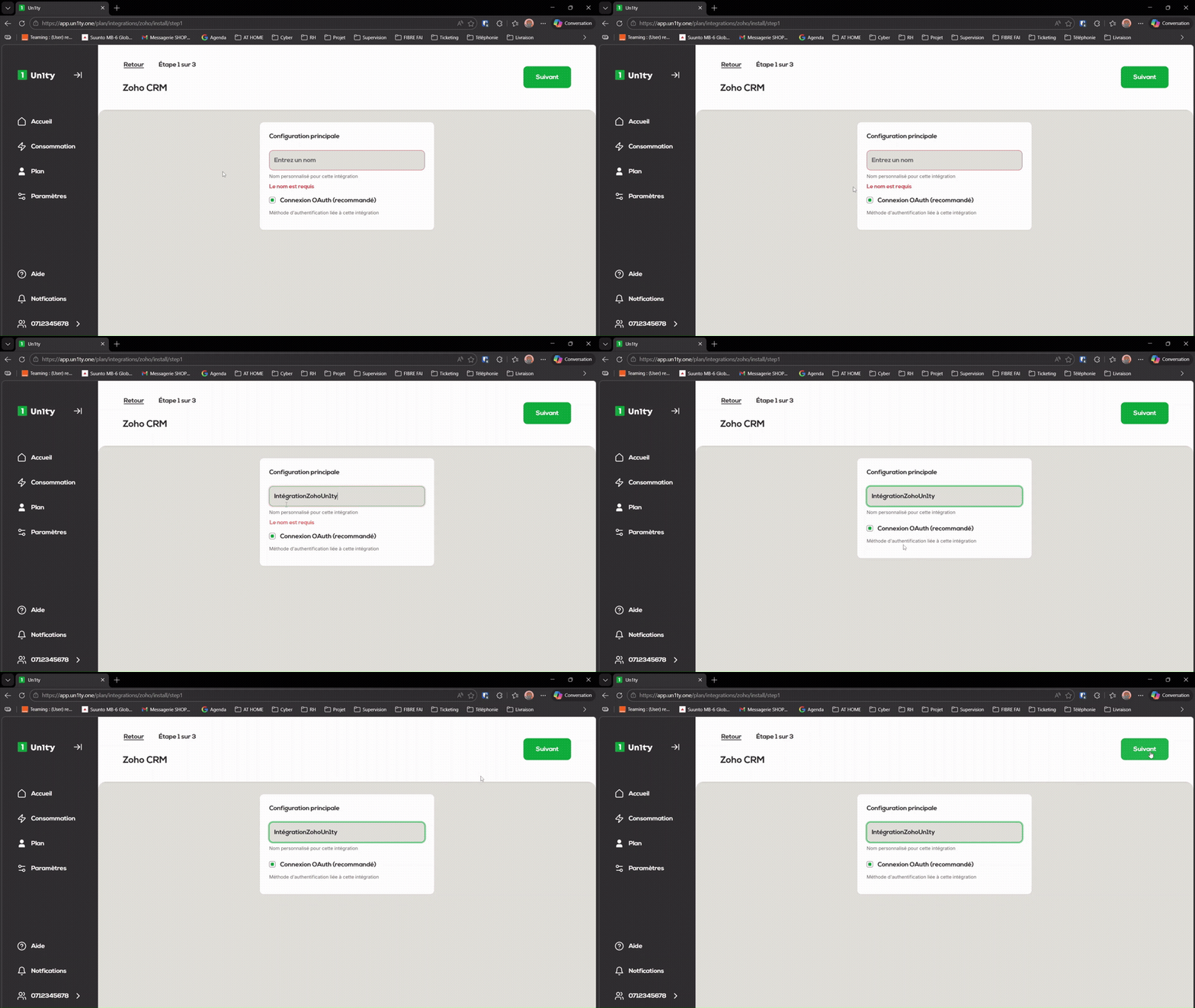
Notes: Easily access your history for simplified accounting and accurate sales tracking by clearly naming your integrations if you manage multiple subsidiaries.
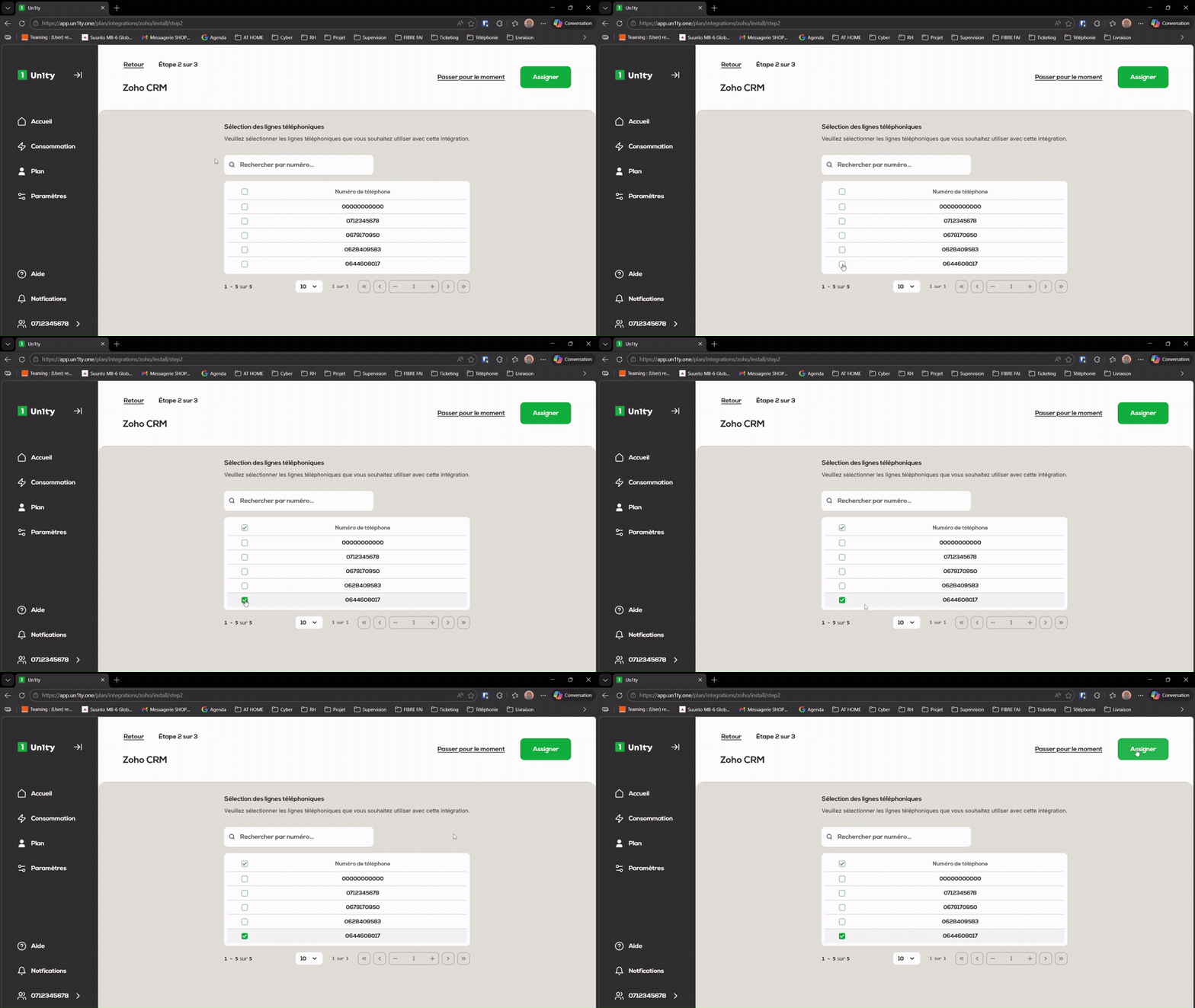
Step 4: Choosing phone lines
You now need to define which Un1ty lines will be linked to Zoho CRM.
Tick the phone number(s) concerned.
Click the Assign button.
A summary is displayed. Take a moment to check that there are no mistakes!
Check your configuration information.
If everything looks good, click on Confirm and Install.
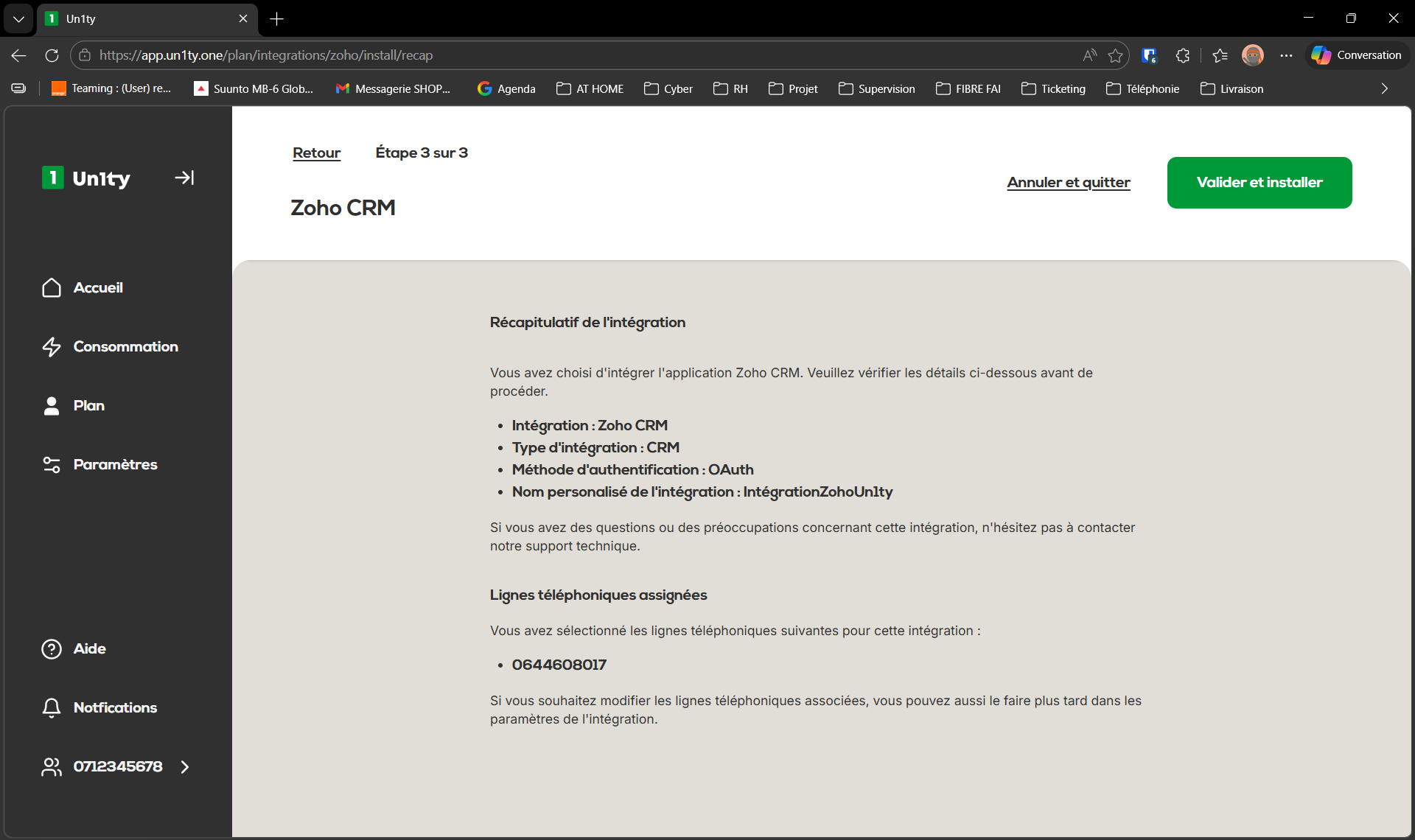
The system now redirects you to Zoho’s secure environment to finalize the gateway.
Sign-in: Enter your admin email address and click Next, then enter your password.
Organization selection: A “Choose services for Un1ty” window appears. Select the organization you want to connect, then click Submit.
Consent: On the screen summarizing the access (contact management, calls, etc.), make sure you tick the box "I allow Un1ty to access the above data from my Zoho account".
Final confirmation: Click the Accept button.
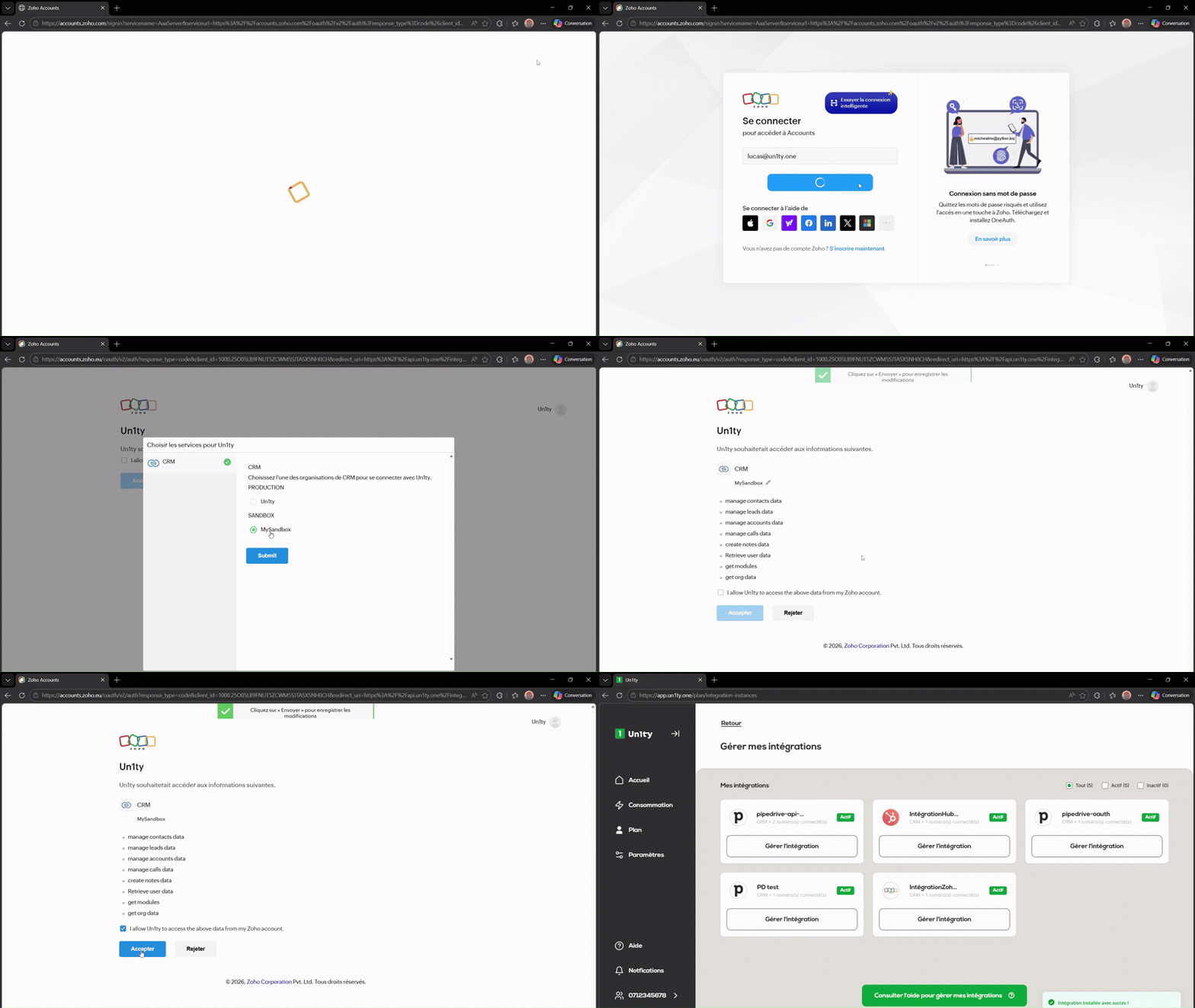
Once the authorization is validated, you’ll be automatically redirected to the "Manage my integrations" page on your Un1ty interface.
If the IntégrationZoho card shows a green "Active" badge, congrats: your synchronization is up and running!
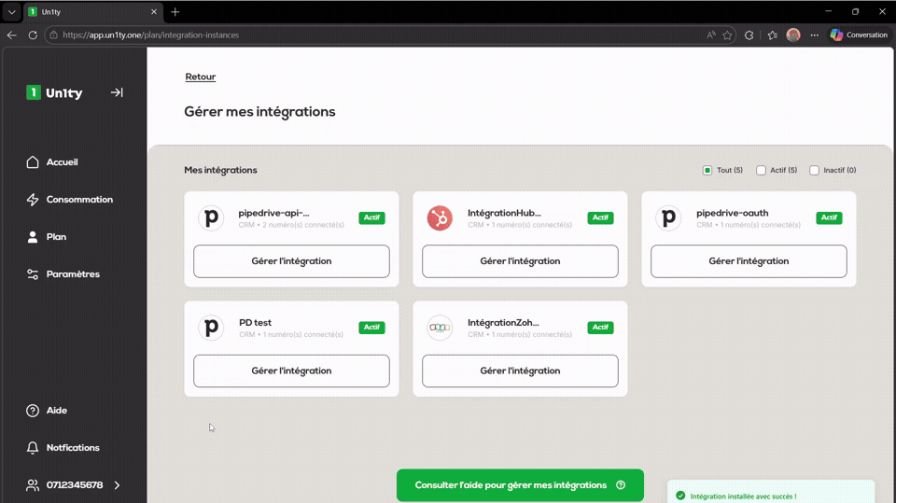
Once the "Active" badge appears on your Un1ty interface, the magic happens in the background:
With every interaction, Un1ty searches your CRM in this order: Contacts → Leads → Accounts.
If the correspondent is recognized, the activity is linked to them.
If the contact is linked to an account, the link is automatically made to both entities.
No more manual entry needed, everything is logged instantly:
Calls: Recorded directly in the Calls module with direction and duration.
SMS: Added as a Note attached to the Contact, Lead, or Account found.
Notes: The activity is automatically assigned to the right member of your team if their Un1ty email address matches their user ID in Zoho CRM.
Time saver: Automatic centralization of calls and SMS in Zoho.
Reliability: Smart contact matching for an always clean history.
Security: Your access (tokens) are encrypted and refreshed automatically with no action needed on your side.